# Módulo de PrestaShop

# 1. Consideraciones previas

El presente documento tiene como objetivo **ayudar a comprender el funcionamiento del módulo y a familiarizar al usuario con su uso**.  
  
Las instrucciones, descripciones, e imágenes capturadas se han realizado sobre **PrestaShop 8.1.5** y **Miravia Connector 1.0.51**.  
  
El documento contiene una breve **guía de instalación, actualización y configuración** en los puntos 2 al 4, una **descripción de la interfaz de usuario** del módulo en el punto 5, y una **guía de primeros pasos** en los puntos 6 al 9.

# 2. Instalación del módulo

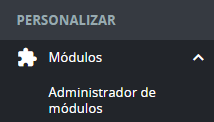
<span style="font-size: 11pt; font-family: Jost, sans-serif; background-color: transparent; font-weight: 400; font-style: normal; font-variant: normal; text-decoration: none; vertical-align: baseline; white-space: pre-wrap;">Primero debemos buscar el índice “</span><span style="font-size: 11pt; font-family: Jost, sans-serif; background-color: transparent; font-weight: bold; font-style: normal; font-variant: normal; text-decoration: none; vertical-align: baseline; white-space: pre-wrap;">Módulos</span><span style="font-size: 11pt; font-family: Jost, sans-serif; background-color: transparent; font-weight: 400; font-style: normal; font-variant: normal; text-decoration: none; vertical-align: baseline; white-space: pre-wrap;">” en el menú de herramientas de PrestaShop y seleccionar “</span><span style="font-size: 11pt; font-family: Jost, sans-serif; background-color: transparent; font-weight: bold; font-style: normal; font-variant: normal; text-decoration: none; vertical-align: baseline; white-space: pre-wrap;">Administrador de módulos</span><span style="font-size: 11pt; font-family: Jost, sans-serif; background-color: transparent; font-weight: 400; font-style: normal; font-variant: normal; text-decoration: none; vertical-align: baseline; white-space: pre-wrap;">”.</span>

<span style="font-size: 11pt; font-family: Jost,sans-serif; color: #000000; background-color: transparent; font-weight: bold; font-style: normal; font-variant: normal; text-decoration: none; vertical-align: baseline; white-space: pre-wrap;"><span style="border: none; display: inline-block; overflow: hidden; width: 189px; height: 108px;">![Captura de pantalla 2024-07-24 110408.png](https://docs.miravia.wecomm.es/uploads/images/gallery/2024-07/captura-de-pantalla-2024-07-24-110408.png)</span></span>

<span style="font-size: 11pt; font-family: Jost,sans-serif; color: #999999; background-color: transparent; font-weight: 400; font-style: italic; font-variant: normal; text-decoration: none; vertical-align: baseline; white-space: pre-wrap;">Imagen 2.01 - Índice “Módulos” en el menú de herramientas de PrestaShop</span>

<span style="font-size: 11pt; font-family: Jost, sans-serif; background-color: transparent; font-weight: 400; font-style: normal; font-variant: normal; text-decoration: none; vertical-align: baseline; white-space: pre-wrap;">Hacer clic en el botón “</span><span style="font-size: 11pt; font-family: Jost, sans-serif; background-color: transparent; font-weight: bold; font-style: normal; font-variant: normal; text-decoration: none; vertical-align: baseline; white-space: pre-wrap;">Subir un módulo</span><span style="font-size: 11pt; font-family: Jost, sans-serif; background-color: transparent; font-weight: 400; font-style: normal; font-variant: normal; text-decoration: none; vertical-align: baseline; white-space: pre-wrap;">”. Arrastraremos o usaremos el explorador de archivos para seleccionar el módulo Miravia Connector, que debe estar comprimido en una carpeta (tendrá extensión .zip). </span>

<span style="font-size: 11pt; font-family: Jost,sans-serif; color: #000000; background-color: transparent; font-weight: 400; font-style: normal; font-variant: normal; text-decoration: none; vertical-align: baseline; white-space: pre-wrap;"><span style="border: 1pt solid #000000; display: inline-block; overflow: hidden; width: 643px; height: 111px;">![Captura de pantalla 2024-07-24 110644.png](https://docs.miravia.wecomm.es/uploads/images/gallery/2024-07/captura-de-pantalla-2024-07-24-110644.png)</span></span>

<span style="font-size: 11pt; font-family: Jost,sans-serif; color: #999999; background-color: transparent; font-weight: 400; font-style: italic; font-variant: normal; text-decoration: none; vertical-align: baseline; white-space: pre-wrap;">Imagen 2.02 - Botón “Subir un módulo” en el header del administrador de módulos</span>

<span style="font-weight: normal;">  
</span>

<span style="font-size: 11pt; font-family: Jost, sans-serif; font-weight: 400; font-style: normal; font-variant: normal; text-decoration: none; vertical-align: baseline; white-space: pre-wrap;">Al subir el módulo, </span><span style="font-size: 11pt; font-family: Jost, sans-serif; font-weight: bold; font-style: normal; font-variant: normal; text-decoration: none; vertical-align: baseline; white-space: pre-wrap;">se instalará automáticamente</span><span style="font-size: 11pt; font-family: Jost, sans-serif; font-weight: 400; font-style: normal; font-variant: normal; text-decoration: none; vertical-align: baseline; white-space: pre-wrap;">. </span>

# 3. Actualización del módulo

Si la versión que tenemos instalada es menor que la última versión publicada, en cualquier página del módulo aparecerá un mensaje emergente alertándonos de que **nuestra versión está desactualizada**.<span style="color: rgb(17, 85, 204);"> *[Haciendo clic en el enlace](https://miravia.wecomm.es/downloads "Descarga módulo")*</span>, nos llevará a la web de descarga para obtener la última versión publicada.  
  
Teniendo descargada la última versión, sólo debemos repetir los pasos descritos en el índice anterior “[**Instalación del módulo**](https://docs.miravia.wecomm.es/books/modulo-de-prestashop/page/2-instalacion-del-modulo)”.

# 4. Configuración del módulo

<span style="font-size: 11pt; font-family: Jost, sans-serif; background-color: transparent; font-weight: 400; font-style: normal; font-variant: normal; text-decoration: none; vertical-align: baseline; white-space: pre-wrap;">Se puede acceder a la configuración del módulo desde la opción del menú “</span><span style="font-size: 11pt; font-family: Jost, sans-serif; background-color: transparent; font-weight: bold; font-style: normal; font-variant: normal; text-decoration: none; vertical-align: baseline; white-space: pre-wrap;">Dashboard</span><span style="font-size: 11pt; font-family: Jost, sans-serif; background-color: transparent; font-weight: 400; font-style: normal; font-variant: normal; text-decoration: none; vertical-align: baseline; white-space: pre-wrap;">” y también haciendo clic en el botón “</span><span style="font-size: 11pt; font-family: Jost, sans-serif; background-color: transparent; font-weight: bold; font-style: normal; font-variant: normal; text-decoration: none; vertical-align: baseline; white-space: pre-wrap;">Configurar</span><span style="font-size: 11pt; font-family: Jost, sans-serif; background-color: transparent; font-weight: 400; font-style: normal; font-variant: normal; text-decoration: none; vertical-align: baseline; white-space: pre-wrap;">” que aparece justo al instalarlo. Para acceder desde el Dashboard, hacer clic en el botón “</span><span style="font-size: 11pt; font-family: Jost, sans-serif; background-color: transparent; font-weight: bold; font-style: normal; font-variant: normal; text-decoration: none; vertical-align: baseline; white-space: pre-wrap;">Settings</span><span style="font-size: 11pt; font-family: Jost, sans-serif; background-color: transparent; font-weight: 400; font-style: normal; font-variant: normal; text-decoration: none; vertical-align: baseline; white-space: pre-wrap;">”.</span>

<span style="font-size: 11pt; font-family: Jost,sans-serif; color: #000000; background-color: transparent; font-weight: 400; font-style: normal; font-variant: normal; text-decoration: none; vertical-align: baseline; white-space: pre-wrap;">  
</span><span style="font-size: 11pt; font-family: Jost,sans-serif; color: #000000; background-color: transparent; font-weight: 400; font-style: normal; font-variant: normal; text-decoration: none; vertical-align: baseline; white-space: pre-wrap;"><span style="border: 1pt solid #000000; display: inline-block; overflow: hidden; width: 643px; height: 88px;">![Captura de pantalla 2024-07-24 112638.png](https://docs.miravia.wecomm.es/uploads/images/gallery/2024-07/captura-de-pantalla-2024-07-24-112638.png)</span></span>

<span style="font-size: 11pt; font-family: Jost,sans-serif; color: #999999; background-color: transparent; font-weight: 400; font-style: italic; font-variant: normal; text-decoration: none; vertical-align: baseline; white-space: pre-wrap;">Imagen 4.01 - Botón “Settings” en el header del Dashboard</span>

<span style="font-size: 11pt; font-family: Jost, sans-serif; background-color: transparent; font-weight: 400; font-style: normal; font-variant: normal; text-decoration: none; vertical-align: baseline; white-space: pre-wrap;">En los ajustes, se diferencian 6 pestañas:</span>

### <span style="font-size: 15pt; font-family: Jost,sans-serif; color: #28897f; background-color: transparent; font-weight: 500; font-style: normal; font-variant: normal; text-decoration: none; vertical-align: baseline; white-space: pre-wrap;">4.1. GENERAL</span>

<span style="font-size: 11pt; font-family: Jost, sans-serif; font-weight: 400; font-style: normal; font-variant: normal; text-decoration: none; vertical-align: baseline; white-space: pre-wrap;">Se puede seleccionar la tienda de Miravia sincronizada por defecto con PrestaShop, o activar/desactivar el modo depuración, entre otros ajustes.</span>

### <span style="font-size: 15pt; font-family: Jost,sans-serif; color: #28897f; background-color: transparent; font-weight: 500; font-style: normal; font-variant: normal; text-decoration: none; vertical-align: baseline; white-space: pre-wrap;">4.2 DEFAULT VALUES</span>

<span style="font-size: 11pt; font-family: Jost, sans-serif; background-color: transparent; font-weight: 400; font-style: normal; font-variant: normal; text-decoration: none; vertical-align: baseline; white-space: pre-wrap;">Se configuran valores por defecto para algunos parámetros y se pueden establecer relaciones de unidades de medida para ciertos productos ([ver Anexo I](https://docs.miravia.wecomm.es/books/anexo-i/page/anexo-i-solucion-campo-unidad-de-medida-vacio)).  
</span>

### <span style="font-size: 15pt; font-family: Jost,sans-serif; color: #28897f; background-color: transparent; font-weight: 500; font-style: normal; font-variant: normal; text-decoration: none; vertical-align: baseline; white-space: pre-wrap;">4.3 ORDER MANAGEMENT</span>

<span style="font-size: 11pt; font-family: Jost, sans-serif; background-color: transparent; font-weight: 400; font-style: normal; font-variant: normal; text-decoration: none; vertical-align: baseline; white-space: pre-wrap;">Se configuran ajustes sobre los pedidos, como el estado de los mismos, impuestos, y relaciones de estado Miravia-PrestaShop.</span>

### <span style="font-size: 15pt; font-family: Jost,sans-serif; color: #28897f; background-color: transparent; font-weight: 500; font-style: normal; font-variant: normal; text-decoration: none; vertical-align: baseline; white-space: pre-wrap;">4.4 CARRIERS</span>

<span style="font-size: 11pt; font-family: Jost, sans-serif; background-color: transparent; font-weight: 400; font-style: normal; font-variant: normal; text-decoration: none; vertical-align: baseline; white-space: pre-wrap;">Se activa o desactiva la opción de costes de envío gratuitos para el cliente, entre otras opciones.</span>

### <span style="font-size: 15pt; font-family: Jost,sans-serif; color: #28897f; background-color: transparent; font-weight: 500; font-style: normal; font-variant: normal; text-decoration: none; vertical-align: baseline; white-space: pre-wrap;">4.5 MULTI-SHOP</span>

<span style="font-size: 11pt; font-family: Jost, sans-serif; background-color: transparent; font-weight: 400; font-style: normal; font-variant: normal; text-decoration: none; vertical-align: baseline; white-space: pre-wrap;">Se configura de cuál tienda obtener el precio y el stock, y en cuál crear los pedidos, en caso de multi-tienda.</span>

### <span style="font-size: 15pt; font-family: Jost,sans-serif; color: #28897f; background-color: transparent; font-weight: 500; font-style: normal; font-variant: normal; text-decoration: none; vertical-align: baseline; white-space: pre-wrap;">4.6 ADVANCED SETTINGS</span>

<span style="font-size: 11pt; font-family: Jost, sans-serif; background-color: transparent; font-weight: 400; font-style: normal; font-variant: normal; text-decoration: none; vertical-align: baseline; white-space: pre-wrap;">Se puede parametrizar la lectura de una tabla o cambiar la cantidad de productos mostrados por página.</span>

# 5. Contenido del módulo

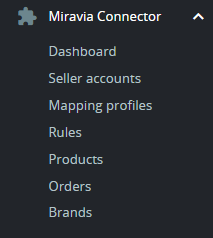
<span style="font-size: 11pt; font-family: Jost, sans-serif; background-color: transparent; font-weight: 400; font-style: normal; font-variant: normal; text-decoration: none; vertical-align: baseline; white-space: pre-wrap;">Al contenido del módulo se accede mediante el menú de herramientas de PrestaShop situado en el margen izquierdo de la pantalla. </span>
<span style="font-size: 11pt; font-family: Jost,sans-serif; color: #000000; background-color: transparent; font-weight: 400; font-style: normal; font-variant: normal; text-decoration: none; vertical-align: baseline; white-space: pre-wrap;"><span style="border: none; display: inline-block; overflow: hidden; width: 213px; height: 238px;">![Captura de pantalla 2024-07-24 144741.png](https://docs.miravia.wecomm.es/uploads/images/gallery/2024-07/captura-de-pantalla-2024-07-24-144741.png)</span></span>

<span style="font-size: 11pt; font-family: Jost,sans-serif; color: #999999; background-color: transparent; font-weight: 400; font-style: italic; font-variant: normal; text-decoration: none; vertical-align: baseline; white-space: pre-wrap;">Imagen 5.01 - Ventanas disponibles en el menú de herramientas del módulo</span>

### <span style="font-size: 15pt; font-family: Jost,sans-serif; color: #28897f; background-color: transparent; font-weight: 500; font-style: normal; font-variant: normal; text-decoration: none; vertical-align: baseline; white-space: pre-wrap;">5.1 DASHBOARD/INICIO</span>

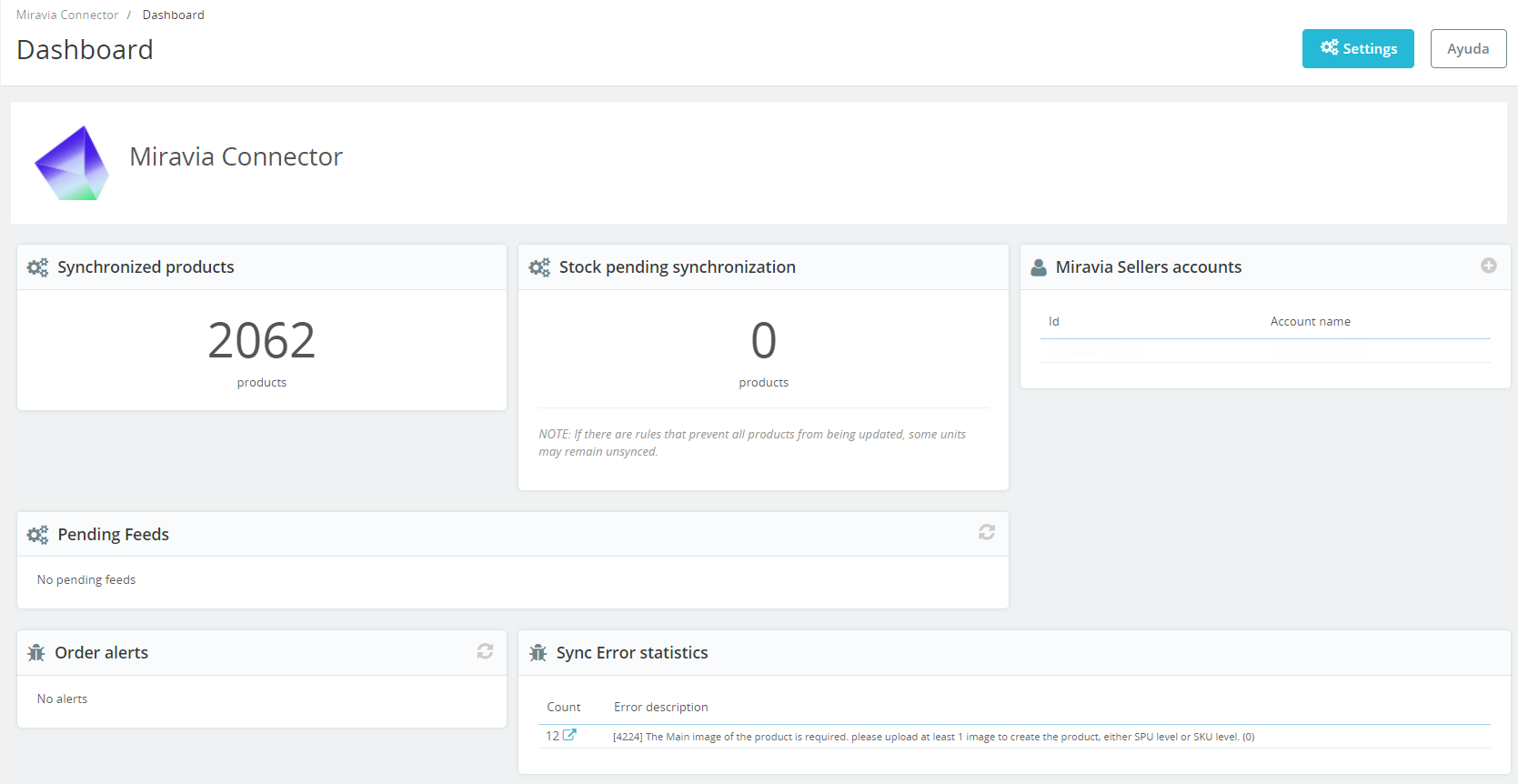
<span style="font-size: 11pt; font-family: Jost, sans-serif; background-color: transparent; font-weight: bold; font-style: normal; font-variant: normal; text-decoration: none; vertical-align: baseline; white-space: pre-wrap;">Panel principal</span><span style="font-size: 11pt; font-family: Jost, sans-serif; background-color: transparent; font-weight: 400; font-style: normal; font-variant: normal; text-decoration: none; vertical-align: baseline; white-space: pre-wrap;"> con datos interesantes en una sola vista. Desde aquí podemos ver la cantidad de productos sincronizados con Miravia, la cantidad de stock pendiente de sincronizar, las cuentas (tiendas Miravia) vinculadas a la tienda de PrestaShop, feeds pendientes (ver “</span><span style="font-size: 11pt; font-family: Jost, sans-serif; background-color: transparent; font-weight: bold; font-style: normal; font-variant: normal; text-decoration: none; vertical-align: baseline; white-space: pre-wrap;">Mapping profiles</span><span style="font-size: 11pt; font-family: Jost, sans-serif; background-color: transparent; font-weight: 400; font-style: normal; font-variant: normal; text-decoration: none; vertical-align: baseline; white-space: pre-wrap;">”), alertas en pedidos, y errores en la sincronización de productos.</span><span style="font-size: 11pt; font-family: Jost, sans-serif; background-color: transparent; font-weight: 400; font-style: normal; font-variant: normal; text-decoration: none; vertical-align: baseline; white-space: pre-wrap;">  
</span><span style="font-size: 11pt; font-family: Jost, sans-serif; background-color: transparent; font-weight: 400; font-style: normal; font-variant: normal; text-decoration: none; vertical-align: baseline; white-space: pre-wrap;">  
</span><span style="font-size: 11pt; font-family: Jost, sans-serif; background-color: transparent; font-weight: 400; font-style: normal; font-variant: normal; text-decoration: none; vertical-align: baseline; white-space: pre-wrap;">Los productos sincronizados son la cantidad de productos publicados en Miravia. Son la suma de productos </span><span style="font-size: 11pt; font-family: Jost, sans-serif; background-color: transparent; font-weight: bold; font-style: normal; font-variant: normal; text-decoration: none; vertical-align: baseline; white-space: pre-wrap;">activos</span><span style="font-size: 11pt; font-family: Jost, sans-serif; background-color: transparent; font-weight: 400; font-style: normal; font-variant: normal; text-decoration: none; vertical-align: baseline; white-space: pre-wrap;"> (a la venta) e </span><span style="font-size: 11pt; font-family: Jost, sans-serif; background-color: transparent; font-weight: bold; font-style: normal; font-variant: normal; text-decoration: none; vertical-align: baseline; white-space: pre-wrap;">inactivos</span><span style="font-size: 11pt; font-family: Jost, sans-serif; background-color: transparent; font-weight: 400; font-style: normal; font-variant: normal; text-decoration: none; vertical-align: baseline; white-space: pre-wrap;"> (están subidos a Miravia pero presentan un error y no se han publicado). Así mismo, los productos </span><span style="font-size: 11pt; font-family: Jost, sans-serif; background-color: transparent; font-weight: bold; font-style: normal; font-variant: normal; text-decoration: none; vertical-align: baseline; white-space: pre-wrap;">no sincronizados</span><span style="font-size: 11pt; font-family: Jost, sans-serif; background-color: transparent; font-weight: 400; font-style: normal; font-variant: normal; text-decoration: none; vertical-align: baseline; white-space: pre-wrap;"> (no se han llegado a subir a Miravia por algún tipo de error) aparecerán en la tabla de errores de sincronización.</span>

<span style="font-size: 11pt; font-family: Jost,sans-serif; color: #000000; background-color: transparent; font-weight: 400; font-style: normal; font-variant: normal; text-decoration: none; vertical-align: baseline; white-space: pre-wrap;"><span style="border: 1pt solid #000000; display: inline-block; overflow: hidden; width: 643px; height: 332px;">![Captura de pantalla 2024-07-24 145000.png](https://docs.miravia.wecomm.es/uploads/images/gallery/2024-07/captura-de-pantalla-2024-07-24-145000.png)</span></span>

<span style="font-size: 11pt; font-family: Jost,sans-serif; color: #999999; background-color: transparent; font-weight: 400; font-style: italic; font-variant: normal; text-decoration: none; vertical-align: baseline; white-space: pre-wrap;">Imagen 5.1.01 - Ventana “Dashboard”</span><span style="font-size: 11pt; font-family: Jost,sans-serif; color: #000000; background-color: transparent; font-weight: 400; font-style: normal; font-variant: normal; text-decoration: none; vertical-align: baseline; white-space: pre-wrap;">  
  
</span>

*<span style="font-size: 11pt; font-family: Jost, sans-serif; background-color: transparent; font-weight: 400; font-variant: normal; text-decoration: none; vertical-align: baseline; white-space: pre-wrap;">Nota: En la imagen, se observan 2062 productos sincronizados (activos + inactivos) + 12 productos no sincronizados = 2074 productos procesados.</span>*

### <span style="font-size: 15pt; font-family: Jost,sans-serif; color: #28897f; background-color: transparent; font-weight: 500; font-style: normal; font-variant: normal; text-decoration: none; vertical-align: baseline; white-space: pre-wrap;">5.2 SELLER ACCOUNTS</span>

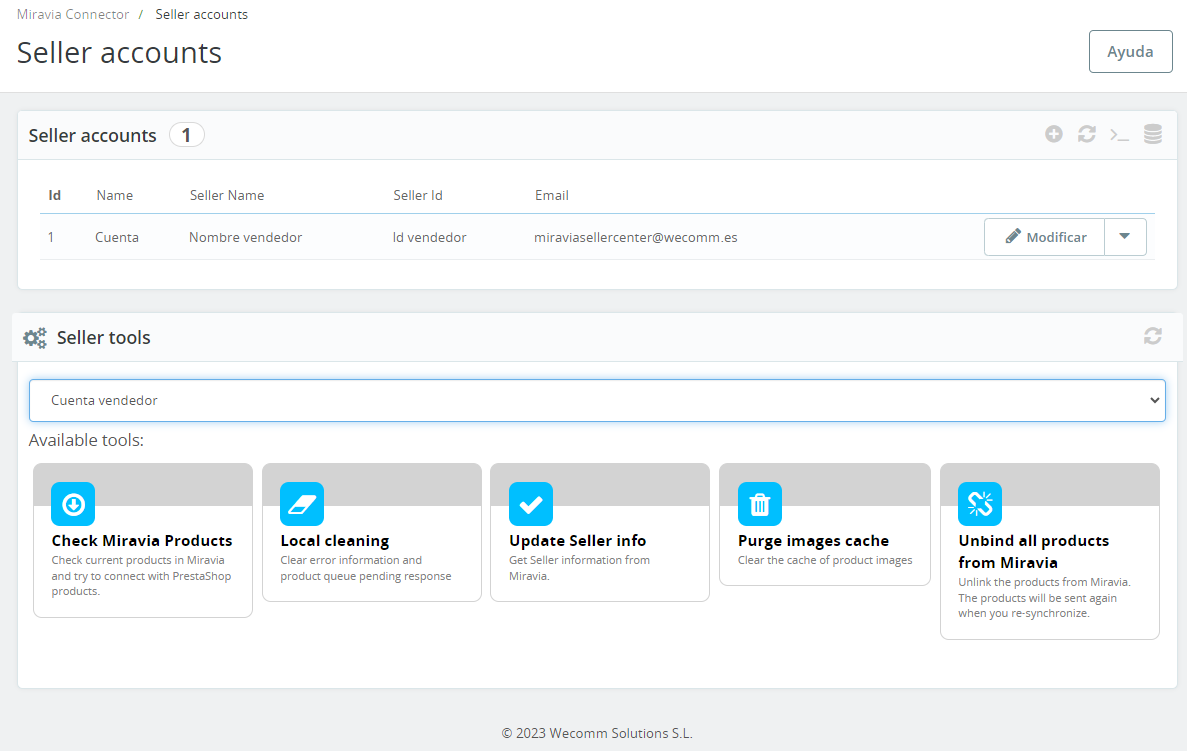
<span style="font-size: 11pt; font-family: Jost, sans-serif; background-color: transparent; font-weight: 400; font-style: normal; font-variant: normal; text-decoration: none; vertical-align: baseline; white-space: pre-wrap;">Panel de </span><span style="font-size: 11pt; font-family: Jost, sans-serif; background-color: transparent; font-weight: bold; font-style: normal; font-variant: normal; text-decoration: none; vertical-align: baseline; white-space: pre-wrap;">cuentas de vendedor</span><span style="font-size: 11pt; font-family: Jost, sans-serif; background-color: transparent; font-weight: 400; font-style: normal; font-variant: normal; text-decoration: none; vertical-align: baseline; white-space: pre-wrap;"> y herramientas. Aquí podremos sincronizar una o varias cuentas de Miravia con nuestra tienda PrestaShop, pulsando sobre el botón “</span><span style="font-size: 11pt; font-family: Jost, sans-serif; background-color: transparent; font-weight: bold; font-style: normal; font-variant: normal; text-decoration: none; vertical-align: baseline; white-space: pre-wrap;">Añadir nuevo</span><span style="font-size: 11pt; font-family: Jost, sans-serif; background-color: transparent; font-weight: 400; font-style: normal; font-variant: normal; text-decoration: none; vertical-align: baseline; white-space: pre-wrap;">” en la tabla “</span><span style="font-size: 11pt; font-family: Jost, sans-serif; background-color: transparent; font-weight: bold; font-style: normal; font-variant: normal; text-decoration: none; vertical-align: baseline; white-space: pre-wrap;">Seller accounts</span><span style="font-size: 11pt; font-family: Jost, sans-serif; background-color: transparent; font-weight: 400; font-style: normal; font-variant: normal; text-decoration: none; vertical-align: baseline; white-space: pre-wrap;">”. Una vez esté la cuenta añadida, podemos editar información haciendo clic sobre ella. </span><span style="font-size: 11pt; font-family: Jost, sans-serif; background-color: transparent; font-weight: 400; font-style: normal; font-variant: normal; text-decoration: none; vertical-align: baseline; white-space: pre-wrap;">  
</span><span style="font-size: 11pt; font-family: Jost, sans-serif; background-color: transparent; font-weight: 400; font-style: normal; font-variant: normal; text-decoration: none; vertical-align: baseline; white-space: pre-wrap;">  
</span><span style="font-size: 11pt; font-family: Jost, sans-serif; background-color: transparent; font-weight: 400; font-style: italic; font-variant: normal; text-decoration: none; vertical-align: baseline; white-space: pre-wrap;">Nota: Si tenemos más de una cuenta en Miravia, al mapear las categorías podremos filtrar qué productos subiremos a cada cuenta. Información ampliada en el apartado 5.3 MAPPING PROFILES.</span>

<span style="font-size: 11pt; font-family: Jost, sans-serif; background-color: transparent; font-weight: 400; font-style: normal; font-variant: normal; text-decoration: none; vertical-align: baseline; white-space: pre-wrap;">  
</span><span style="font-size: 11pt; font-family: Jost, sans-serif; background-color: transparent; font-weight: 400; font-style: normal; font-variant: normal; text-decoration: none; vertical-align: baseline; white-space: pre-wrap;">La tabla “</span><span style="font-size: 11pt; font-family: Jost, sans-serif; background-color: transparent; font-weight: bold; font-style: normal; font-variant: normal; text-decoration: none; vertical-align: baseline; white-space: pre-wrap;">Seller tools</span><span style="font-size: 11pt; font-family: Jost, sans-serif; background-color: transparent; font-weight: 400; font-style: normal; font-variant: normal; text-decoration: none; vertical-align: baseline; white-space: pre-wrap;">” será la que más usemos. Se selecciona la cuenta sobre la que queramos trabajar y con los botones de abajo podemos comprobar los productos de Miravia (partiendo de los productos sincronizados con Miravia, el módulo intenta relacionarlos con los productos del PrestaShop, e identifica diferencias, por ejemplo, de stock), borrar información de errores y cola de productos pendientes de respuesta, obtener información del perfil de vendedor desde Miravia, limpiar el caché de imágenes de producto, y desincronizar productos en Miravia.</span><span style="font-size: 11pt; font-family: Jost, sans-serif; background-color: transparent; font-weight: 400; font-style: normal; font-variant: normal; text-decoration: none; vertical-align: baseline; white-space: pre-wrap;">  
</span>

<span style="font-size: 11pt; font-family: Jost,sans-serif; color: #000000; background-color: transparent; font-weight: 400; font-style: normal; font-variant: normal; text-decoration: none; vertical-align: baseline; white-space: pre-wrap;"><span style="border: 1pt solid #000000; display: inline-block; overflow: hidden; width: 643px; height: 407px;">![Captura de pantalla 2024-07-25 085547.png](https://docs.miravia.wecomm.es/uploads/images/gallery/2024-07/captura-de-pantalla-2024-07-25-085547.png)</span></span>

<span style="font-size: 11pt; font-family: Jost,sans-serif; color: #999999; background-color: transparent; font-weight: 400; font-style: italic; font-variant: normal; text-decoration: none; vertical-align: baseline; white-space: pre-wrap;">Imagen 5.2.01 - Ventana “Seller accounts”</span><span style="font-size: 11pt; font-family: Jost,sans-serif; color: #000000; background-color: transparent; font-weight: 400; font-style: normal; font-variant: normal; text-decoration: none; vertical-align: baseline; white-space: pre-wrap;">  
  
</span>

### <span style="font-size: 15pt; font-family: Jost,sans-serif; color: #28897f; background-color: transparent; font-weight: 500; font-style: normal; font-variant: normal; text-decoration: none; vertical-align: baseline; white-space: pre-wrap;">5.3 MAPPING PROFILES</span>

<span style="font-size: 11pt; font-family: Jost, sans-serif; background-color: transparent; font-weight: 400; font-style: normal; font-variant: normal; text-decoration: none; vertical-align: baseline; white-space: pre-wrap;">Panel donde se establecen las </span><span style="font-size: 11pt; font-family: Jost, sans-serif; background-color: transparent; font-weight: bold; font-style: normal; font-variant: normal; text-decoration: none; vertical-align: baseline; white-space: pre-wrap;">relaciones entre las categorías de productos</span><span style="font-size: 11pt; font-family: Jost, sans-serif; background-color: transparent; font-weight: 400; font-style: normal; font-variant: normal; text-decoration: none; vertical-align: baseline; white-space: pre-wrap;"> de nuestro PrestaShop y las categorías de publicación de Miravia. Visualmente es muy parecido a la página de 5.2 SELLER ACCOUNTS. Sobre el botón de “</span><span style="font-size: 11pt; font-family: Jost, sans-serif; background-color: transparent; font-weight: bold; font-style: normal; font-variant: normal; text-decoration: none; vertical-align: baseline; white-space: pre-wrap;">Añadir nuevo</span><span style="font-size: 11pt; font-family: Jost, sans-serif; background-color: transparent; font-weight: 400; font-style: normal; font-variant: normal; text-decoration: none; vertical-align: baseline; white-space: pre-wrap;">” crearemos una nueva relación. Aparecerán 3 pestañas:</span>

<span style="font-size: 11pt; font-family: Jost,sans-serif; color: #28897f; background-color: transparent; font-weight: 400; font-style: normal; font-variant: normal; text-decoration: none; vertical-align: baseline; white-space: pre-wrap;">5.3.1 CATEGORY</span>

<span style="font-size: 11pt; font-family: Jost, sans-serif; background-color: transparent; font-weight: 400; font-style: normal; font-variant: normal; text-decoration: none; vertical-align: baseline; white-space: pre-wrap;">Contiene el nombre asignado a la relación, las categorías de PrestaShop a publicar (categorías ORIGEN), la categoría de Miravia relacionada con la(s) de PrestaShop (categoría DESTINO) y las tiendas de Miravia en las que quieres publicar (entre las que previamente has añadido).</span>

<span style="font-size: 11pt; font-family: Jost,sans-serif; color: #000000; background-color: transparent; font-weight: 400; font-style: normal; font-variant: normal; text-decoration: none; vertical-align: baseline; white-space: pre-wrap;"><span style="border: 1pt solid #000000; display: inline-block; overflow: hidden; width: 643px; height: 391px;">![Captura de pantalla 2024-07-25 105948.png](https://docs.miravia.wecomm.es/uploads/images/gallery/2024-07/captura-de-pantalla-2024-07-25-105948.png)</span></span>

<span style="font-size: 11pt; font-family: Jost,sans-serif; color: #999999; background-color: transparent; font-weight: 400; font-style: italic; font-variant: normal; text-decoration: none; vertical-align: baseline; white-space: pre-wrap;">Imagen 5.3.1.01 - Pestaña “CATEGORY”</span>

<span style="font-size: 11pt; font-family: Jost,sans-serif; color: #28897f; background-color: transparent; font-weight: 400; font-style: normal; font-variant: normal; text-decoration: none; vertical-align: baseline; white-space: pre-wrap;">5.3.2 ATTRIBUTES</span>

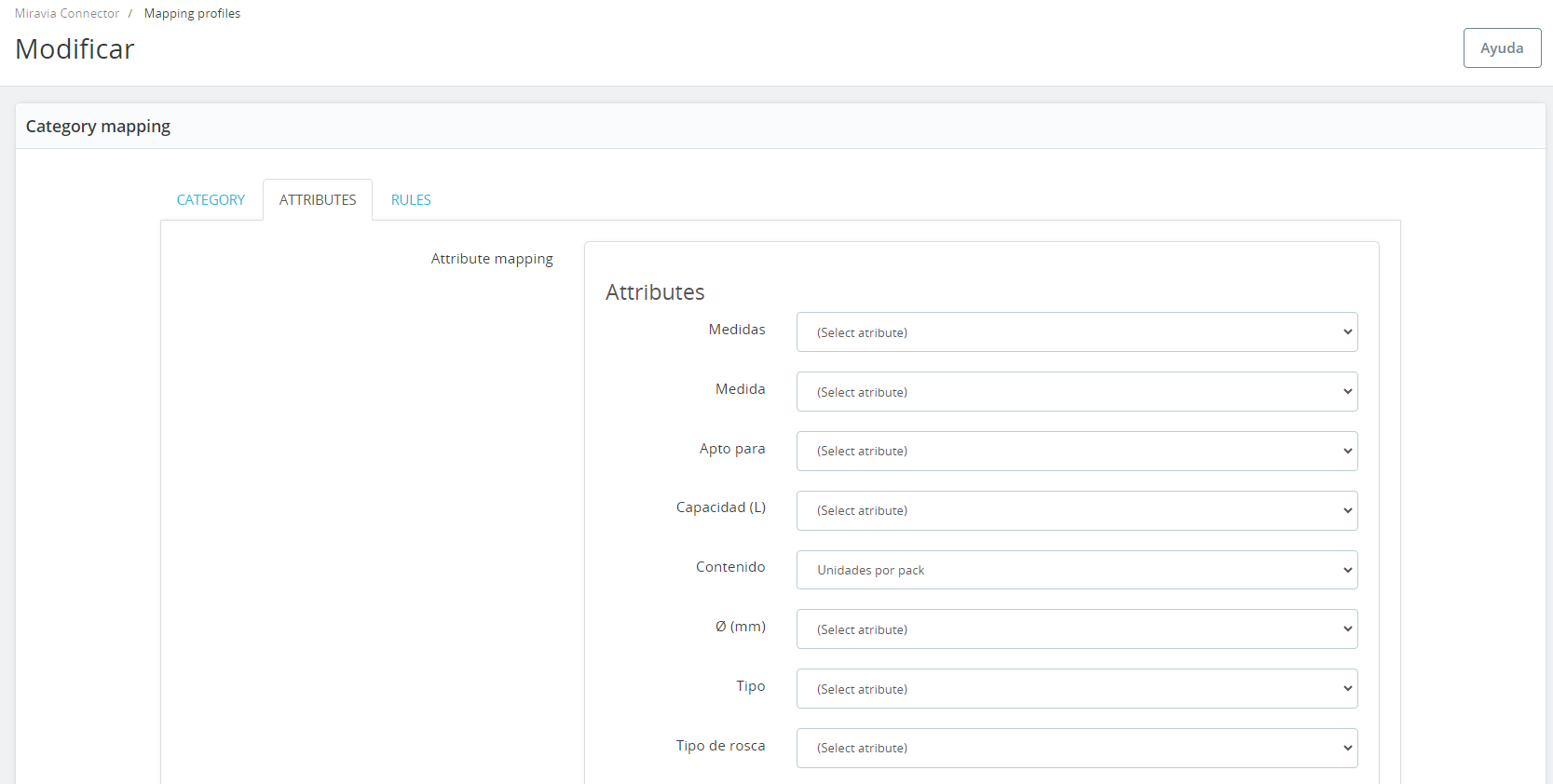
<span style="font-size: 11pt; font-family: Jost, sans-serif; background-color: transparent; font-weight: 400; font-style: normal; font-variant: normal; text-decoration: none; vertical-align: baseline; white-space: pre-wrap;">Aquí se pueden relacionar las características y atributos de los productos asociados a la categoría de Miravia (categoría DESTINO) con las características y atributos definidos en PrestaShop.</span>

<span style="font-size: 11pt; font-family: Jost,sans-serif; color: #28897f; background-color: transparent; font-weight: 400; font-style: normal; font-variant: normal; text-decoration: none; vertical-align: baseline; white-space: pre-wrap;">5.3.3 RULES</span>

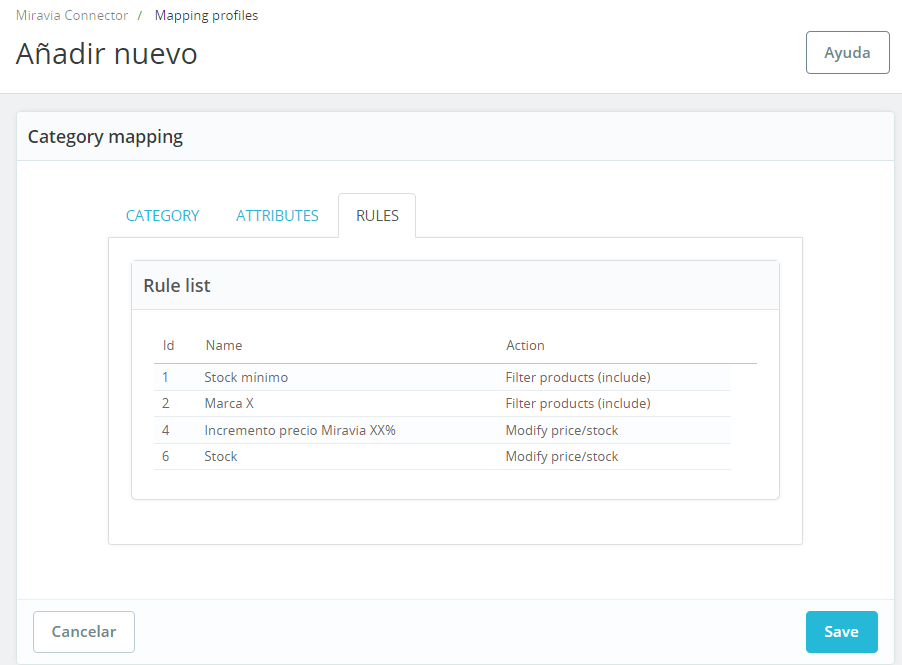
<span style="font-size: 11pt; font-family: Jost, sans-serif; background-color: transparent; font-weight: 400; font-style: normal; font-variant: normal; text-decoration: none; vertical-align: baseline; white-space: pre-wrap;">Muestra y permite editar las reglas de filtrado involucradas con el perfil de mapeo que se está editando (ver 5.4 RULES).</span>

<span style="font-size: 11pt; font-family: Jost,sans-serif; color: #000000; background-color: transparent; font-weight: 400; font-style: normal; font-variant: normal; text-decoration: none; vertical-align: baseline; white-space: pre-wrap;"><span style="border: 1pt solid #000000; display: inline-block; overflow: hidden; width: 643px; height: 473px;">![Captura de pantalla 2024-07-25 110347.png](https://docs.miravia.wecomm.es/uploads/images/gallery/2024-07/captura-de-pantalla-2024-07-25-110347.png)</span></span>

<span style="font-size: 11pt; font-family: Jost,sans-serif; color: #999999; background-color: transparent; font-weight: 400; font-style: italic; font-variant: normal; text-decoration: none; vertical-align: baseline; white-space: pre-wrap;">Imagen 5.3.3.01 - Pestaña “RULES”</span>

<span style="font-size: 11pt; font-family: Jost, sans-serif; background-color: transparent; font-weight: 400; font-style: normal; font-variant: normal; text-decoration: none; vertical-align: baseline; white-space: pre-wrap;">Una vez existan relaciones entre las categorías ORIGEN y DESTINO, ya se pueden enviar productos a Miravia, aunque lo ideal es configurar previamente filtros de productos (ver 5.4 RULES).</span><span style="font-size: 11pt; font-family: Jost, sans-serif; background-color: transparent; font-weight: 400; font-style: normal; font-variant: normal; text-decoration: none; vertical-align: baseline; white-space: pre-wrap;">  
</span><span style="font-size: 11pt; font-family: Jost, sans-serif; background-color: transparent; font-weight: 400; font-style: normal; font-variant: normal; text-decoration: none; vertical-align: baseline; white-space: pre-wrap;">  
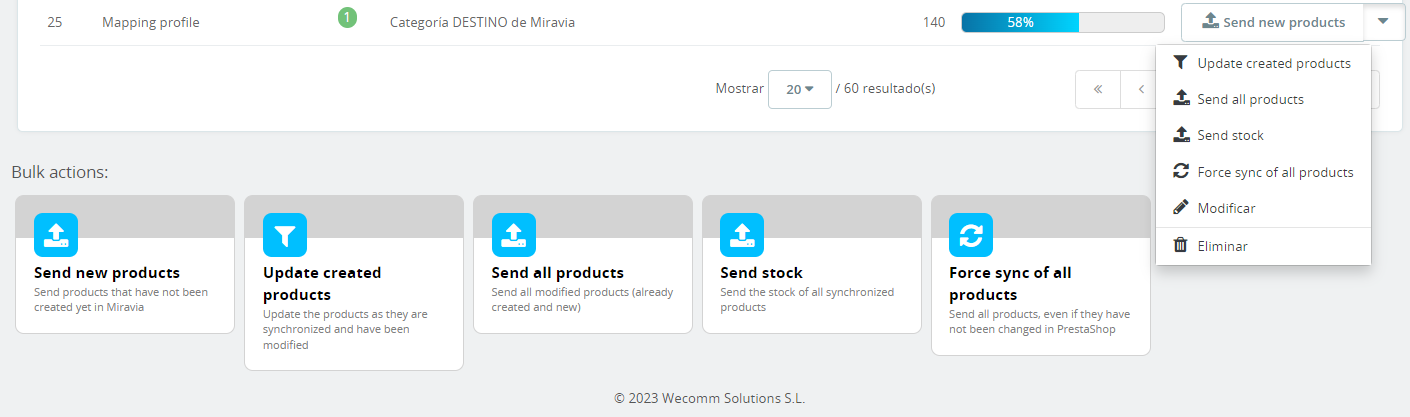
</span><span style="font-size: 11pt; font-family: Jost, sans-serif; background-color: transparent; font-weight: 400; font-style: normal; font-variant: normal; text-decoration: none; vertical-align: baseline; white-space: pre-wrap;">Por cada relación de categorías (mapping profile) podemos usar el desplegable derecho para enviar productos nuevos (pertenecientes al mapping profile pero no subidos todavía), actualizar los productos ya creados, enviar todos los productos (enviar los nuevos y reenviar los ya creados pero que han sido modificados en PrestaShop), enviar el stock, forzar la sincronización de todos los productos (envia todos los productos: nuevos + ya creados hayan sido modificados o no), modificar una relación (también haciendo clic sobre el propio mapping profile), y por último también podemos eliminar la relación definida.</span><span style="font-size: 11pt; font-family: Jost, sans-serif; background-color: transparent; font-weight: 400; font-style: normal; font-variant: normal; text-decoration: none; vertical-align: baseline; white-space: pre-wrap;">  
</span><span style="font-size: 11pt; font-family: Jost, sans-serif; background-color: transparent; font-weight: 400; font-style: normal; font-variant: normal; text-decoration: none; vertical-align: baseline; white-space: pre-wrap;">  
</span><span style="font-size: 11pt; font-family: Jost, sans-serif; background-color: transparent; font-weight: 400; font-style: normal; font-variant: normal; text-decoration: none; vertical-align: baseline; white-space: pre-wrap;">Igualmente, podemos usar estas acciones masivamente con los botones de abajo, en las “</span><span style="font-size: 11pt; font-family: Jost, sans-serif; background-color: transparent; font-weight: bold; font-style: normal; font-variant: normal; text-decoration: none; vertical-align: baseline; white-space: pre-wrap;">Bulk actions</span><span style="font-size: 11pt; font-family: Jost, sans-serif; background-color: transparent; font-weight: 400; font-style: normal; font-variant: normal; text-decoration: none; vertical-align: baseline; white-space: pre-wrap;">”, de forma que las acciones se realizan sobre todas las relaciones o mapping profiles definidos.</span>

<span style="font-size: 11pt; font-family: Jost,sans-serif; color: #000000; background-color: transparent; font-weight: 400; font-style: normal; font-variant: normal; text-decoration: none; vertical-align: baseline; white-space: pre-wrap;"><span style="border: 1pt solid #000000; display: inline-block; overflow: hidden; width: 643px; height: 191px;">![Captura de pantalla 2024-07-25 111910.png](https://docs.miravia.wecomm.es/uploads/images/gallery/2024-07/captura-de-pantalla-2024-07-25-111910.png)</span></span>

<span style="font-size: 11pt; font-family: Jost,sans-serif; color: #999999; background-color: transparent; font-weight: 400; font-style: italic; font-variant: normal; text-decoration: none; vertical-align: baseline; white-space: pre-wrap;">Imagen 5.3.01 - Ventana “Mapping profiles”</span>

<span style="font-size: 11pt; font-family: Jost, sans-serif; background-color: transparent; font-weight: 400; font-style: normal; font-variant: normal; text-decoration: none; vertical-align: baseline; white-space: pre-wrap;">Una vez tengamos productos enviados, podemos ver en la barra de progreso, el porcentaje de productos subidos de todos los posibles, es decir, de todos los contenidos en las categorías mapeadas. El no llegar al 100% puede deberse tanto a errores en productos como a filtros o reglas de filtrado definidas. Si hay productos no sincronizados por errores, se observará un tramo rojo en la propia barra de progreso, representando el porcentaje de éstos.</span>

### <span style="font-size: 15pt; font-family: Jost,sans-serif; color: #28897f; background-color: transparent; font-weight: 500; font-style: normal; font-variant: normal; text-decoration: none; vertical-align: baseline; white-space: pre-wrap;">5.4 RULES</span>

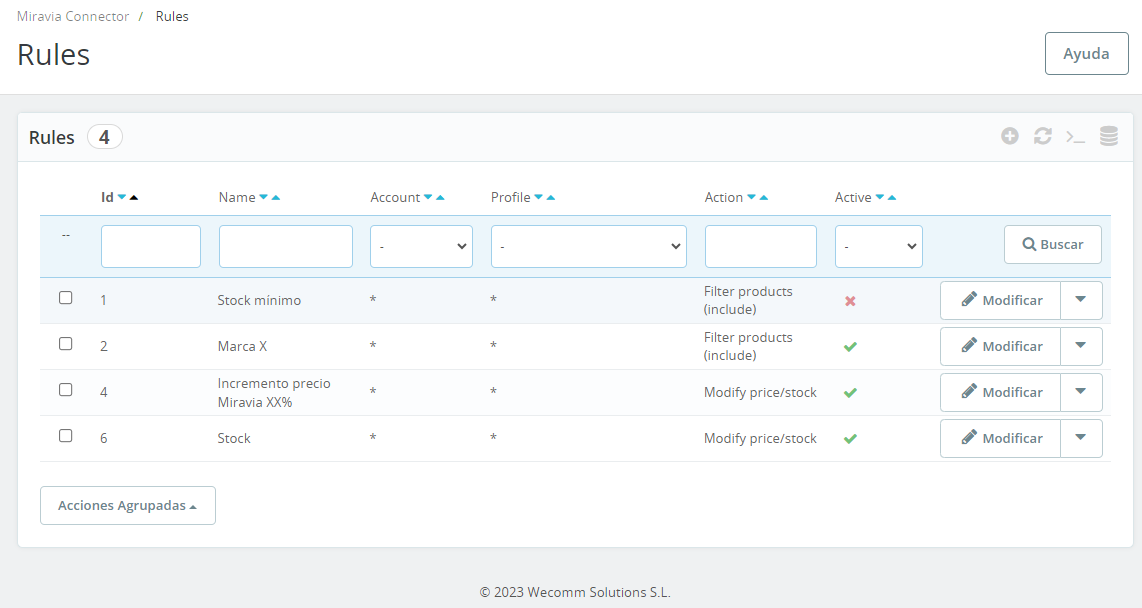
<span style="font-size: 11pt; font-family: Jost, sans-serif; font-weight: 400; font-style: normal; font-variant: normal; text-decoration: none; vertical-align: baseline; white-space: pre-wrap;">Panel que permite </span><span style="font-size: 11pt; font-family: Jost, sans-serif; font-weight: bold; font-style: normal; font-variant: normal; text-decoration: none; vertical-align: baseline; white-space: pre-wrap;">añadir filtros o reglas de filtrado</span><span style="font-size: 11pt; font-family: Jost, sans-serif; font-weight: 400; font-style: normal; font-variant: normal; text-decoration: none; vertical-align: baseline; white-space: pre-wrap;"> de productos. Con estas reglas podemos definir que sólo queremos subir productos que tengan un stock mínimo, que sean de una marca, fabricante o proveedor concretos, incrementar o modificar el precio, impedir la sincronización de algunos productos, modificar el nombre o la descripción, entre muchas otras.</span><span style="font-size: 11pt; font-family: Jost,sans-serif; color: #000000; background-color: transparent; font-weight: 400; font-style: normal; font-variant: normal; text-decoration: none; vertical-align: baseline; white-space: pre-wrap;">  
  
</span>

<span style="font-size: 11pt; font-family: Jost,sans-serif; color: #000000; background-color: transparent; font-weight: 400; font-style: normal; font-variant: normal; text-decoration: none; vertical-align: baseline; white-space: pre-wrap;">  
</span><span style="font-size: 11pt; font-family: Jost,sans-serif; color: #000000; background-color: transparent; font-weight: 400; font-style: normal; font-variant: normal; text-decoration: none; vertical-align: baseline; white-space: pre-wrap;"><span style="border: 1pt solid #000000; display: inline-block; overflow: hidden; width: 643px; height: 343px;">![Captura de pantalla 2024-07-25 101726.png](https://docs.miravia.wecomm.es/uploads/images/gallery/2024-07/captura-de-pantalla-2024-07-25-101726.png)</span></span>

<span style="font-size: 11pt; font-family: Jost,sans-serif; color: #999999; background-color: transparent; font-weight: 400; font-style: italic; font-variant: normal; text-decoration: none; vertical-align: baseline; white-space: pre-wrap;">Imagen 5.4.01 - Ventana “Rules”</span>

*<span style="font-size: 11pt; font-family: Jost, sans-serif; background-color: transparent; font-weight: 400; font-variant: normal; text-decoration: none; vertical-align: baseline; white-space: pre-wrap;">Nota: Miravia tiene comisiones en la venta que dependen directamente de la categoría en la que están publicados, y que cambian con el tiempo. Es una buena práctica hacer uso de una regla de filtrado para impactar en el precio de nuestros productos en Miravia, de forma que tengamos en cuenta las comisiones de Miravia para no perder el control sobre los márgenes de venta.</span>*

*<span style="color: rgb(17, 85, 204);">[<span style="font-size: 11pt; font-family: Jost, sans-serif; background-color: transparent; font-weight: 400; font-variant: normal; text-decoration: none; vertical-align: baseline; white-space: pre-wrap;">Tabla de comisiones de Miravia</span>](https://sell.miravia.es/feelist)</span>*

### <span style="font-size: 15pt; font-family: Jost,sans-serif; color: #28897f; background-color: transparent; font-weight: 500; font-style: normal; font-variant: normal; text-decoration: none; vertical-align: baseline; white-space: pre-wrap;">5.5 PRODUCTS</span>

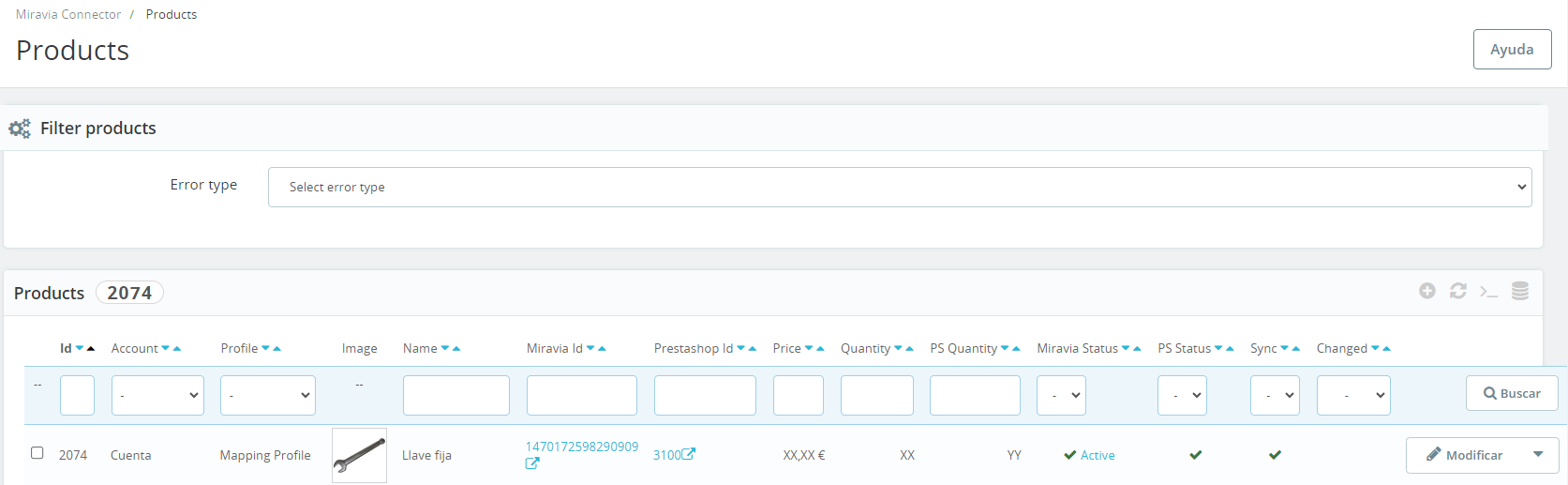
<span style="font-size: 11pt; font-family: Jost, sans-serif; background-color: transparent; font-weight: 400; font-style: normal; font-variant: normal; text-decoration: none; vertical-align: baseline; white-space: pre-wrap;">Panel de productos. En primer lugar hay un filtro de productos desplegable, que </span><span style="font-size: 11pt; font-family: Jost, sans-serif; background-color: transparent; font-weight: bold; font-style: normal; font-variant: normal; text-decoration: none; vertical-align: baseline; white-space: pre-wrap;">filtra los productos no sincronizados</span><span style="font-size: 11pt; font-family: Jost, sans-serif; background-color: transparent; font-weight: 400; font-style: normal; font-variant: normal; text-decoration: none; vertical-align: baseline; white-space: pre-wrap;"> según el error que ocasiona que no se suban a Miravia, para que los tengamos agrupados y sea más eficiente solucionar los errores. </span>

<span style="font-size: 11pt; font-family: Jost, sans-serif; background-color: transparent; font-weight: 400; font-style: normal; font-variant: normal; text-decoration: none; vertical-align: baseline; white-space: pre-wrap;">Debajo del filtro, está la </span><span style="font-size: 11pt; font-family: Jost, sans-serif; background-color: transparent; font-weight: bold; font-style: normal; font-variant: normal; text-decoration: none; vertical-align: baseline; white-space: pre-wrap;">tabla de productos</span><span style="font-size: 11pt; font-family: Jost, sans-serif; background-color: transparent; font-weight: 400; font-style: normal; font-variant: normal; text-decoration: none; vertical-align: baseline; white-space: pre-wrap;">. Con el filtro seleccionado, nos mostrará los productos afectados por el error seleccionado. Si no hay ningún filtro seleccionado, nos muestra todos los productos mapeados (activos + inactivos + no sincronizados).</span><span style="font-size: 11pt; font-family: Jost,sans-serif; color: #000000; background-color: transparent; font-weight: 400; font-style: normal; font-variant: normal; text-decoration: none; vertical-align: baseline; white-space: pre-wrap;">  
</span>

<span style="font-size: 11pt; font-family: Jost,sans-serif; color: #000000; background-color: transparent; font-weight: 400; font-style: normal; font-variant: normal; text-decoration: none; vertical-align: baseline; white-space: pre-wrap;">  
</span><span style="font-size: 11pt; font-family: Jost,sans-serif; color: #000000; background-color: transparent; font-weight: 400; font-style: normal; font-variant: normal; text-decoration: none; vertical-align: baseline; white-space: pre-wrap;"><span style="border: 1pt solid #000000; display: inline-block; overflow: hidden; width: 643px; height: 199px;">![Captura de pantalla 2024-07-25 104014.png](https://docs.miravia.wecomm.es/uploads/images/gallery/2024-07/captura-de-pantalla-2024-07-25-104014.png)</span></span>

<span style="font-size: 11pt; font-family: Jost,sans-serif; color: #999999; background-color: transparent; font-weight: 400; font-style: italic; font-variant: normal; text-decoration: none; vertical-align: baseline; white-space: pre-wrap;">Imagen 5.5.01 - Ventana “Products”</span>

<span style="font-size: 11pt; font-family: Jost, sans-serif; background-color: transparent; font-weight: 400; font-style: normal; font-variant: normal; text-decoration: none; vertical-align: baseline; white-space: pre-wrap;">Desde aquí podemos activar o desactivar uno o varios productos, acceder a su página publicada en Miravia haciendo clic sobre su “</span><span style="font-size: 11pt; font-family: Jost, sans-serif; background-color: transparent; font-weight: bold; font-style: normal; font-variant: normal; text-decoration: none; vertical-align: baseline; white-space: pre-wrap;">Miravia Id</span><span style="font-size: 11pt; font-family: Jost, sans-serif; background-color: transparent; font-weight: 400; font-style: normal; font-variant: normal; text-decoration: none; vertical-align: baseline; white-space: pre-wrap;">”, acceder a la edición de producto en PrestaShop haciendo clic sobre su “</span><span style="font-size: 11pt; font-family: Jost, sans-serif; background-color: transparent; font-weight: bold; font-style: normal; font-variant: normal; text-decoration: none; vertical-align: baseline; white-space: pre-wrap;">PrestaShop Id</span><span style="font-size: 11pt; font-family: Jost, sans-serif; background-color: transparent; font-weight: 400; font-style: normal; font-variant: normal; text-decoration: none; vertical-align: baseline; white-space: pre-wrap;">” y también filtrar u ordenar los productos por cualquiera de las columnas.</span>

### <span style="font-size: 15pt; font-family: Jost,sans-serif; color: #28897f; background-color: transparent; font-weight: 500; font-style: normal; font-variant: normal; text-decoration: none; vertical-align: baseline; white-space: pre-wrap;">5.6 ORDERS</span>

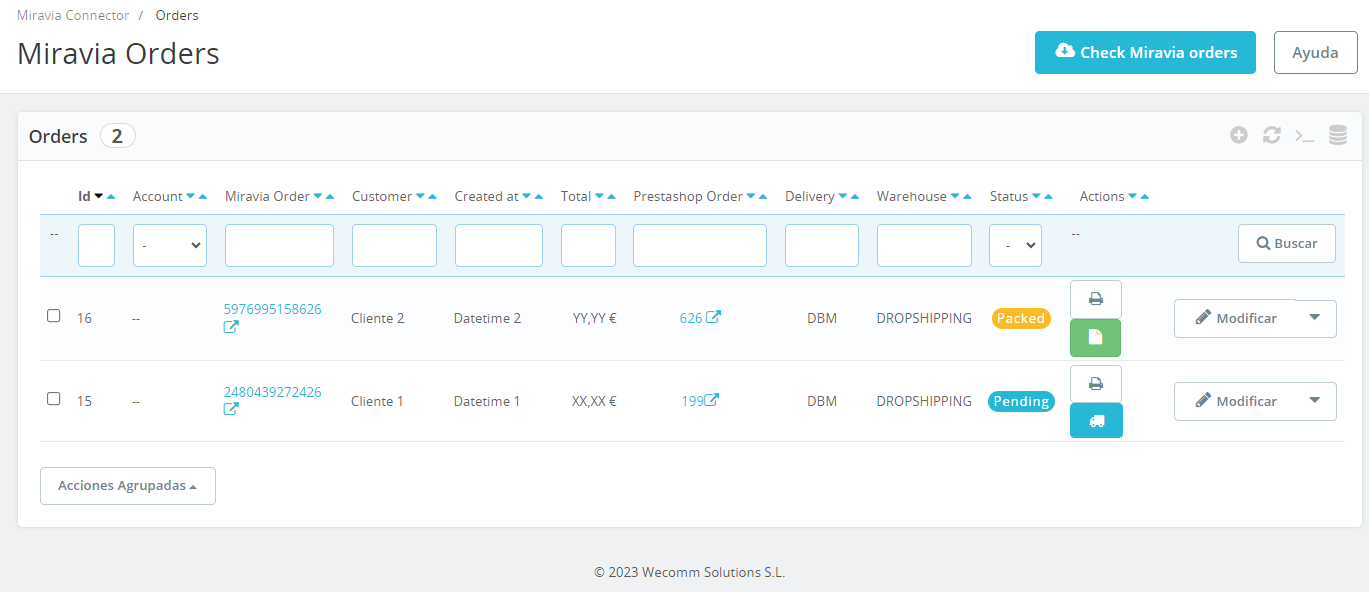
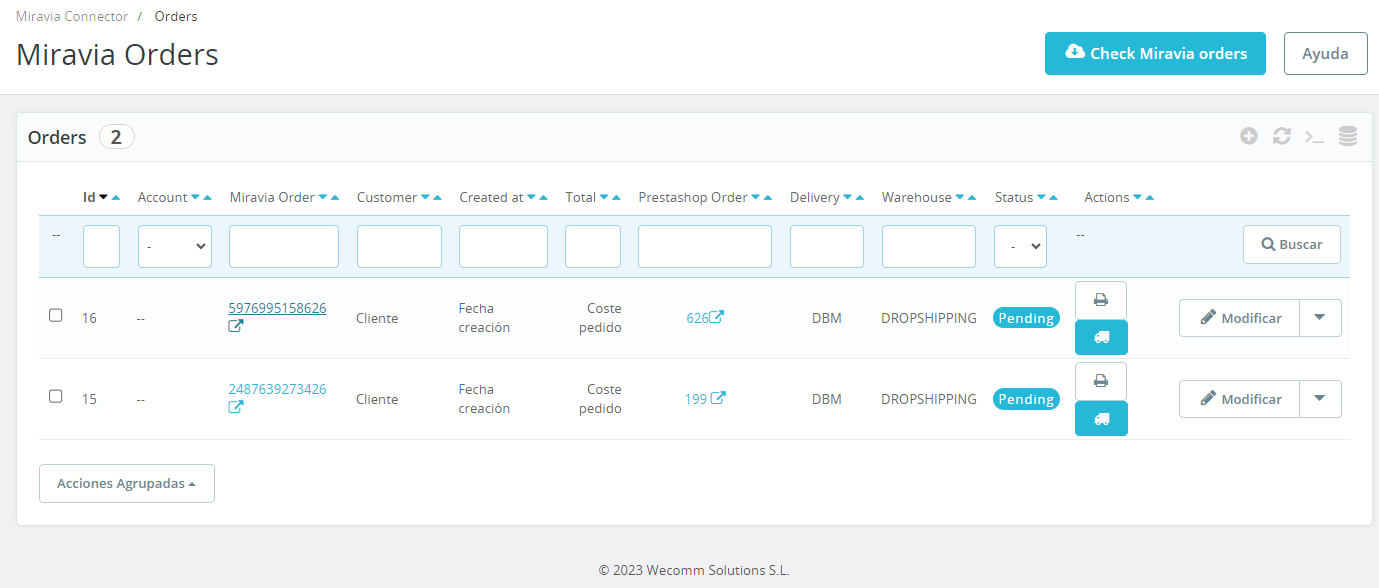
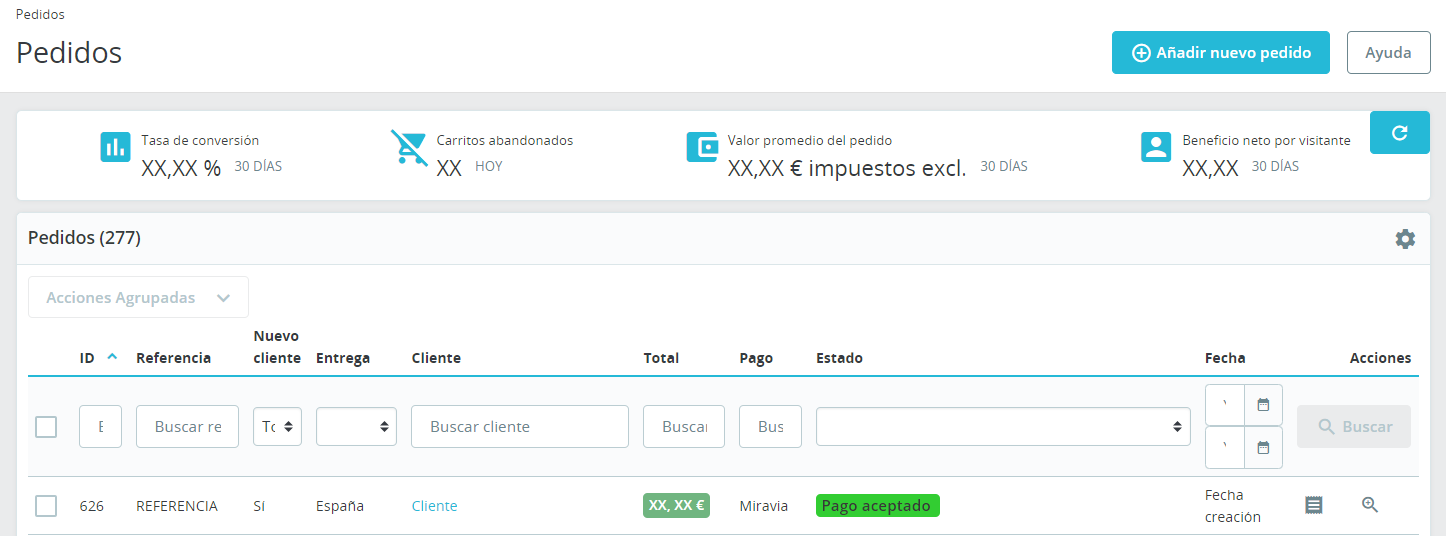
<span style="font-size: 11pt; font-family: Jost, sans-serif; background-color: transparent; font-weight: 400; font-style: normal; font-variant: normal; text-decoration: none; vertical-align: baseline; white-space: pre-wrap;">Panel de</span><span style="font-size: 11pt; font-family: Jost, sans-serif; background-color: transparent; font-weight: bold; font-style: normal; font-variant: normal; text-decoration: none; vertical-align: baseline; white-space: pre-wrap;"> gestión de pedidos</span><span style="font-size: 11pt; font-family: Jost, sans-serif; background-color: transparent; font-weight: 400; font-style: normal; font-variant: normal; text-decoration: none; vertical-align: baseline; white-space: pre-wrap;">. En la tabla se mostrarán todos los pedidos de Miravia, donde nuevamente podremos filtrar y ordenar por cualquiera de las columnas. En concreto, la tabla muestra el id del pedido, la cuenta de Miravia en la que se ha generado el pedido, el id de pedido de Miravia (desde el cuál podemos acceder haciendo clic al pedido en el seller center de Miravia), el nombre del cliente, la fecha y hora de creación del pedido, el precio total del pedido (con los costes de envío incluidos), el id de pedido de PrestaShop, el método de envío (puede ser DBM o DBS, ver 9. Gestión de pedidos de Miravia), el almacén de envío, el estado del pedido y por último, las acciones disponibles.</span><span style="font-size: 11pt; font-family: Jost, sans-serif; background-color: transparent; font-weight: 400; font-style: normal; font-variant: normal; text-decoration: none; vertical-align: baseline; white-space: pre-wrap;">  
</span><span style="font-size: 11pt; font-family: Jost, sans-serif; background-color: transparent; font-weight: 400; font-style: normal; font-variant: normal; text-decoration: none; vertical-align: baseline; white-space: pre-wrap;">  
</span><span style="font-size: 11pt; font-family: Jost, sans-serif; background-color: transparent; font-weight: 400; font-style: normal; font-variant: normal; text-decoration: none; vertical-align: baseline; white-space: pre-wrap;">En la parte superior, también tenemos el botón “</span><span style="font-size: 11pt; font-family: Jost, sans-serif; background-color: transparent; font-weight: bold; font-style: normal; font-variant: normal; text-decoration: none; vertical-align: baseline; white-space: pre-wrap;">Check Miravia orders</span><span style="font-size: 11pt; font-family: Jost, sans-serif; background-color: transparent; font-weight: 400; font-style: normal; font-variant: normal; text-decoration: none; vertical-align: baseline; white-space: pre-wrap;">”, que fuerza la actualización del estado de los pedidos de Miravia. Normalmente no es necesario clicarlo, ya que deberían llegar notificaciones cuando haya pedidos nuevos, pero la funcionalidad está implementada por si hubiera que forzar la actualización de la información.</span>

<span style="font-size: 11pt; font-family: Jost,sans-serif; color: #000000; background-color: transparent; font-weight: 400; font-style: normal; font-variant: normal; text-decoration: none; vertical-align: baseline; white-space: pre-wrap;"><span style="border: 1pt solid #000000; display: inline-block; overflow: hidden; width: 643px; height: 277px;">![Captura de pantalla 2024-07-25 113123.png](https://docs.miravia.wecomm.es/uploads/images/gallery/2024-07/captura-de-pantalla-2024-07-25-113123.png)</span></span>

<span style="font-size: 11pt; font-family: Jost,sans-serif; color: #999999; background-color: transparent; font-weight: 400; font-style: italic; font-variant: normal; text-decoration: none; vertical-align: baseline; white-space: pre-wrap;">Imagen 5.6.01 - Ventana “Orders”</span>

### <span style="font-size: 15pt; font-family: Jost,sans-serif; color: #28897f; background-color: transparent; font-weight: 500; font-style: normal; font-variant: normal; text-decoration: none; vertical-align: baseline; white-space: pre-wrap;">5.7 BRANDS</span>

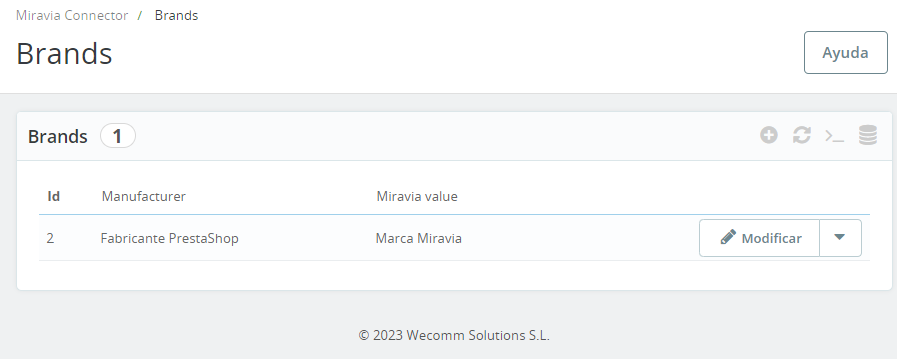
<span style="font-size: 11pt; font-family: Jost, sans-serif; background-color: transparent; font-weight: 400; font-style: normal; font-variant: normal; text-decoration: none; vertical-align: baseline; white-space: pre-wrap;">Panel de </span><span style="font-size: 11pt; font-family: Jost, sans-serif; background-color: transparent; font-weight: bold; font-style: normal; font-variant: normal; text-decoration: none; vertical-align: baseline; white-space: pre-wrap;">gestión de marcas registradas</span><span style="font-size: 11pt; font-family: Jost, sans-serif; background-color: transparent; font-weight: 400; font-style: normal; font-variant: normal; text-decoration: none; vertical-align: baseline; white-space: pre-wrap;">. </span><span style="font-size: 11pt; font-family: Jost, sans-serif; background-color: transparent; font-weight: 400; font-style: normal; font-variant: normal; text-decoration: none; vertical-align: baseline; white-space: pre-wrap;">  
</span><span style="font-size: 11pt; font-family: Jost, sans-serif; background-color: transparent; font-weight: 400; font-style: normal; font-variant: normal; text-decoration: none; vertical-align: baseline; white-space: pre-wrap;">  
</span><span style="font-size: 11pt; font-family: Jost, sans-serif; background-color: transparent; font-weight: 400; font-style: italic; font-variant: normal; text-decoration: none; vertical-align: baseline; white-space: pre-wrap;">Nota: Miravia no te permite vender productos de una marca hasta que no te autoriza. Para ello, se debe hacer una solicitud desde tu Centro de Vendedor o Seller Center. Suponiendo que tienes aprobada la solicitud de marca, ya podrías vender productos bajo esa marca.</span><span style="font-size: 11pt; font-family: Jost,sans-serif; color: #000000; background-color: transparent; font-weight: 400; font-style: normal; font-variant: normal; text-decoration: none; vertical-align: baseline; white-space: pre-wrap;">  
</span>

<span style="color: rgb(17, 85, 204);">*[<span style="font-size: 11pt; font-family: Jost, sans-serif; background-color: transparent; font-weight: 400; font-variant: normal; text-decoration: none; vertical-align: baseline; white-space: pre-wrap;">Tutorial de Miravia Academy de cómo solicitar una marca</span>](https://sellercenter.miravia.es/academy/course/learn?spm=a2a4n.academy_course_search.module_search.d_2.4b44705fYcMSq7&id=100001852&type=lms)*</span>

<span style="font-size: 11pt; font-family: Jost, sans-serif; background-color: transparent; font-weight: 400; font-style: normal; font-variant: normal; text-decoration: none; vertical-align: baseline; white-space: pre-wrap;">Aquí se muestra un panel muy simple, donde </span><span style="font-size: 11pt; font-family: Jost, sans-serif; background-color: transparent; font-weight: bold; font-style: normal; font-variant: normal; text-decoration: none; vertical-align: baseline; white-space: pre-wrap;">se definen relaciones 1:1</span><span style="font-size: 11pt; font-family: Jost, sans-serif; background-color: transparent; font-weight: 400; font-style: normal; font-variant: normal; text-decoration: none; vertical-align: baseline; white-space: pre-wrap;"> entre las marcas de tu productos de PrestaShop, y la marca correspondiente registrada en Miravia.</span><span style="font-size: 11pt; font-family: Jost,sans-serif; color: #000000; background-color: transparent; font-weight: 400; font-style: normal; font-variant: normal; text-decoration: none; vertical-align: baseline; white-space: pre-wrap;">  
</span>

<span style="font-size: 11pt; font-family: Jost,sans-serif; color: #000000; background-color: transparent; font-weight: 400; font-style: normal; font-variant: normal; text-decoration: none; vertical-align: baseline; white-space: pre-wrap;">  
</span><span style="font-size: 11pt; font-family: Jost,sans-serif; color: #000000; background-color: transparent; font-weight: 400; font-style: normal; font-variant: normal; text-decoration: none; vertical-align: baseline; white-space: pre-wrap;"><span style="border: 1pt solid #000000; display: inline-block; overflow: hidden; width: 643px; height: 257px;">![Captura de pantalla 2024-07-25 123315.png](https://docs.miravia.wecomm.es/uploads/images/gallery/2024-07/captura-de-pantalla-2024-07-25-123315.png)</span></span>

<span style="font-size: 11pt; font-family: Jost,sans-serif; color: #999999; background-color: transparent; font-weight: 400; font-style: italic; font-variant: normal; text-decoration: none; vertical-align: baseline; white-space: pre-wrap;">Imagen 5.7.01 - Ventana “Brands”</span>

<span style="font-weight: normal;">  
</span>

<span style="font-size: 11pt; font-family: Jost, sans-serif; background-color: transparent; font-weight: 400; font-style: italic; font-variant: normal; text-decoration: none; vertical-align: baseline; white-space: pre-wrap;">Nota: Si se suben productos de un fabricante que no tiene una relación con una marca registrada en Miravia, se sube como un producto sin marca.</span>

# 6. Sincronización con la tienda de Miravia

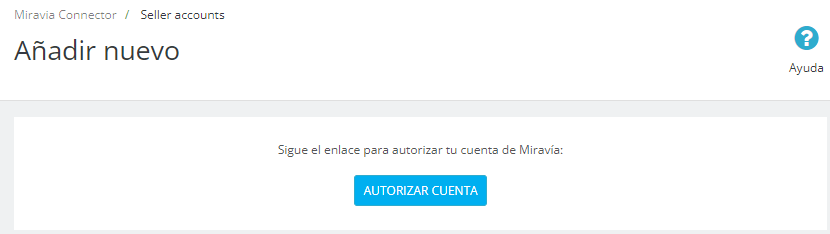
<span style="font-size: 11pt; font-family: Jost, sans-serif; background-color: transparent; font-weight: 400; font-style: normal; font-variant: normal; text-decoration: none; vertical-align: baseline; white-space: pre-wrap;">Para sincronizar nuestro PrestaShop con una tienda en Miravia, debemos acceder a la ventana “</span><span style="font-size: 11pt; font-family: Jost, sans-serif; background-color: transparent; font-weight: bold; font-style: normal; font-variant: normal; text-decoration: none; vertical-align: baseline; white-space: pre-wrap;">Seller accounts</span><span style="font-size: 11pt; font-family: Jost, sans-serif; background-color: transparent; font-weight: 400; font-style: normal; font-variant: normal; text-decoration: none; vertical-align: baseline; white-space: pre-wrap;">” y hacer clic en “</span><span style="font-size: 11pt; font-family: Jost, sans-serif; background-color: transparent; font-weight: bold; font-style: normal; font-variant: normal; text-decoration: none; vertical-align: baseline; white-space: pre-wrap;">Añadir nuevo</span><span style="font-size: 11pt; font-family: Jost, sans-serif; background-color: transparent; font-weight: 400; font-style: normal; font-variant: normal; text-decoration: none; vertical-align: baseline; white-space: pre-wrap;">”.</span>

<span style="font-size: 11pt; font-family: Jost, sans-serif; background-color: transparent; font-weight: 400; font-style: normal; font-variant: normal; text-decoration: none; vertical-align: baseline; white-space: pre-wrap;">Al pulsar el botón nos pedirá seguir un enlace para autorizar la conexión mediante las credenciales de nuestra tienda de Miravia. Para ello, primero hay que pulsar en el botón “</span><span style="font-size: 11pt; font-family: Jost, sans-serif; background-color: transparent; font-weight: bold; font-style: normal; font-variant: normal; text-decoration: none; vertical-align: baseline; white-space: pre-wrap;">AUTORIZAR CUENTA</span><span style="font-size: 11pt; font-family: Jost, sans-serif; background-color: transparent; font-weight: 400; font-style: normal; font-variant: normal; text-decoration: none; vertical-align: baseline; white-space: pre-wrap;">”.</span>

<span style="font-size: 11pt; font-family: Jost,sans-serif; color: #000000; background-color: transparent; font-weight: 400; font-style: normal; font-variant: normal; text-decoration: none; vertical-align: baseline; white-space: pre-wrap;"><span style="border: 1pt solid #000000; display: inline-block; overflow: hidden; width: 643px; height: 181px;">![Captura de pantalla 2024-06-06 130655.png](https://docs.miravia.wecomm.es/uploads/images/gallery/2024-07/captura-de-pantalla-2024-06-06-130655.png)</span></span>

<span style="font-size: 11pt; font-family: Jost,sans-serif; color: #999999; background-color: transparent; font-weight: 400; font-style: italic; font-variant: normal; text-decoration: none; vertical-align: baseline; white-space: pre-wrap;">Imagen 6.01 - Botón “AUTORIZAR CUENTA” en la ventana “Seller accounts”</span>

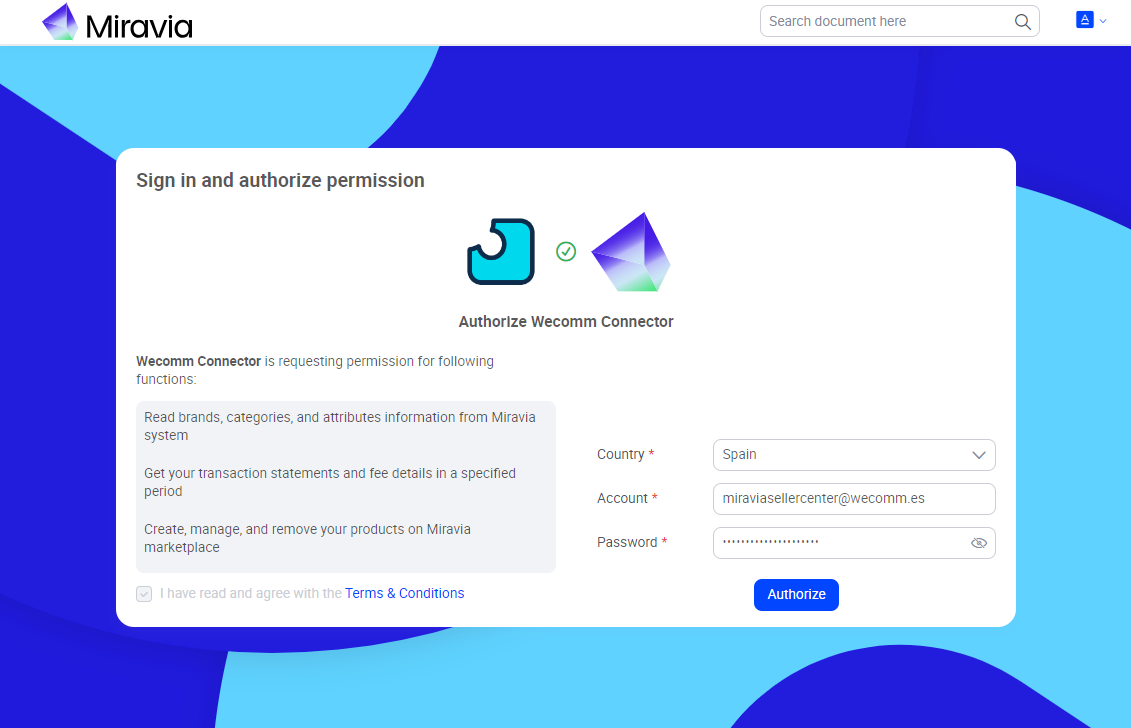
<span style="font-size: 11pt; font-family: Jost, sans-serif; background-color: transparent; font-weight: 400; font-style: normal; font-variant: normal; text-decoration: none; vertical-align: baseline; white-space: pre-wrap;">Al pulsar el botón cargará la página de vinculación donde debemos autorizar los permisos requeridos por el módulo, seleccionando el país desde el desplegable, e introduciendo las credenciales de acceso del Seller Center de Miravia (Centro de vendedor). Hacemos clic en “</span><span style="font-size: 11pt; font-family: Jost, sans-serif; background-color: transparent; font-weight: bold; font-style: normal; font-variant: normal; text-decoration: none; vertical-align: baseline; white-space: pre-wrap;">AUTHORIZE</span><span style="font-size: 11pt; font-family: Jost, sans-serif; background-color: transparent; font-weight: 400; font-style: normal; font-variant: normal; text-decoration: none; vertical-align: baseline; white-space: pre-wrap;">”.</span>

<span style="font-size: 11pt; font-family: Jost,sans-serif; color: #000000; background-color: transparent; font-weight: 400; font-style: normal; font-variant: normal; text-decoration: none; vertical-align: baseline; white-space: pre-wrap;"><span style="border: 1pt solid #000000; display: inline-block; overflow: hidden; width: 643px; height: 413px;">![Captura de pantalla 2024-06-06 131132.png](https://docs.miravia.wecomm.es/uploads/images/gallery/2024-07/captura-de-pantalla-2024-06-06-131132.png)</span></span>

<span style="font-size: 11pt; font-family: Jost,sans-serif; color: #999999; background-color: transparent; font-weight: 400; font-style: italic; font-variant: normal; text-decoration: none; vertical-align: baseline; white-space: pre-wrap;">Imagen 6.02 - Página de autenticación de la cuenta de Miravia</span>

<span style="font-weight: normal;">  
</span>

<span style="font-size: 11pt; font-family: Jost, sans-serif; background-color: transparent; font-weight: 400; font-style: normal; font-variant: normal; text-decoration: none; vertical-align: baseline; white-space: pre-wrap;">Si la autenticación ha sido exitosa veremos un banner verde y ya tendremos nuestra de vendedor añadida en la tabla. En caso contrario, veremos un banner rojo si algo ha fallado.</span>

# 7. Reglas de filtrado y mapeo de categorías

<span style="font-size: 11pt; font-family: Jost, sans-serif; background-color: transparent; font-weight: 400; font-style: normal; font-variant: normal; text-decoration: none; vertical-align: baseline; white-space: pre-wrap;">El siguiente paso tras vincular nuestra tienda de Miravia sería configurar el </span><span style="font-size: 11pt; font-family: Jost, sans-serif; background-color: transparent; font-weight: bold; font-style: normal; font-variant: normal; text-decoration: none; vertical-align: baseline; white-space: pre-wrap;">filtrado de productos</span><span style="font-size: 11pt; font-family: Jost, sans-serif; background-color: transparent; font-weight: 400; font-style: normal; font-variant: normal; text-decoration: none; vertical-align: baseline; white-space: pre-wrap;">, que podemos dividir en dos pasos diferenciados:</span><span style="font-size: 15pt; font-family: Jost,sans-serif; color: #28897f; background-color: transparent; font-weight: 500; font-style: normal; font-variant: normal; text-decoration: none; vertical-align: baseline; white-space: pre-wrap;">  
</span><span style="font-size: 15pt; font-family: Jost,sans-serif; color: #28897f; background-color: transparent; font-weight: 500; font-style: normal; font-variant: normal; text-decoration: none; vertical-align: baseline; white-space: pre-wrap;">  
</span><span style="font-size: 15pt; font-family: Jost,sans-serif; color: #28897f; background-color: transparent; font-weight: 500; font-style: normal; font-variant: normal; text-decoration: none; vertical-align: baseline; white-space: pre-wrap;">7.1 Reglas</span>

<span style="font-size: 11pt; font-family: Jost, sans-serif; background-color: transparent; font-weight: 400; font-style: normal; font-variant: normal; text-decoration: none; vertical-align: baseline; white-space: pre-wrap;">En la ventana “Rules” (ver 5.4 RULES) iremos añadiendo las reglas de filtrado que consideremos necesarias.</span><span style="font-size: 11pt; font-family: Jost,sans-serif; color: #000000; background-color: transparent; font-weight: 400; font-style: normal; font-variant: normal; text-decoration: none; vertical-align: baseline; white-space: pre-wrap;">  
</span>

<span style="font-size: 11pt; font-family: Jost,sans-serif; color: #000000; background-color: transparent; font-weight: 400; font-style: normal; font-variant: normal; text-decoration: none; vertical-align: baseline; white-space: pre-wrap;">  
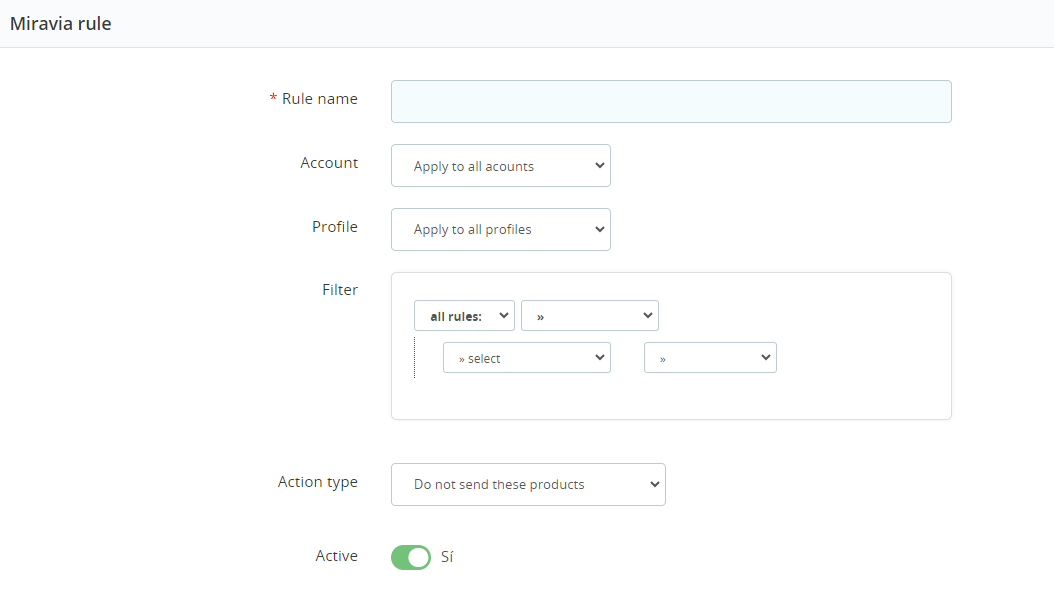
</span><span style="font-size: 11pt; font-family: Jost,sans-serif; color: #000000; background-color: transparent; font-weight: 400; font-style: normal; font-variant: normal; text-decoration: none; vertical-align: baseline; white-space: pre-wrap;"><span style="border: 1pt solid #000000; display: inline-block; overflow: hidden; width: 643px; height: 360px;">![Captura de pantalla 2024-07-25 130057.png](https://docs.miravia.wecomm.es/uploads/images/gallery/2024-07/captura-de-pantalla-2024-07-25-130057.png)</span></span>

<span style="font-size: 11pt; font-family: Jost,sans-serif; color: #999999; background-color: transparent; font-weight: 400; font-style: italic; font-variant: normal; text-decoration: none; vertical-align: baseline; white-space: pre-wrap;">Imagen 7.1.01 - Configuración nueva regla de filtrado</span>

<span style="font-size: 11pt; font-family: Jost, sans-serif; background-color: transparent; font-weight: 400; font-style: normal; font-variant: normal; text-decoration: none; vertical-align: baseline; white-space: pre-wrap;">Para </span><span style="font-size: 11pt; font-family: Jost, sans-serif; background-color: transparent; font-weight: bold; font-style: normal; font-variant: normal; text-decoration: none; vertical-align: baseline; white-space: pre-wrap;">añadir una regla</span><span style="font-size: 11pt; font-family: Jost, sans-serif; background-color: transparent; font-weight: 400; font-style: normal; font-variant: normal; text-decoration: none; vertical-align: baseline; white-space: pre-wrap;">, debemos añadirle un nombre, seleccionar la tienda de Miravia afectada por la regla (o todas), seleccionar el mapping profile (ver 5.3 MAPPING PROFILES) afectado por la regla (o todos), el filtro de producto (podemos filtrar por nombre, precio, precio específico, stock, categoría, proveedor, fabricante o id de Miravia), el tipo de acción a realizar (podemos no enviar los productos filtrados, sólo enviar estos productos, cambiarles el precio o el stock, modificar el nombre o la descripción, o aplicar una regla logística), y por último, podemos activar o desactivar la regla.</span>

<span style="font-size: 11pt; font-family: Jost,sans-serif; color: #000000; background-color: transparent; font-weight: 400; font-style: normal; font-variant: normal; text-decoration: none; vertical-align: baseline; white-space: pre-wrap;">  
</span><span style="font-size: 11pt; font-family: Jost, sans-serif; background-color: transparent; font-weight: 400; font-style: italic; font-variant: normal; text-decoration: none; vertical-align: baseline; white-space: pre-wrap;">Nota: El módulo aplica las reglas ordenadas por id creciente.</span><span style="font-size: 11pt; font-family: Jost,sans-serif; color: #000000; background-color: transparent; font-weight: 400; font-style: normal; font-variant: normal; text-decoration: none; vertical-align: baseline; white-space: pre-wrap;">  
</span><span style="font-size: 11pt; font-family: Jost,sans-serif; color: #000000; background-color: transparent; font-weight: 400; font-style: normal; font-variant: normal; text-decoration: none; vertical-align: baseline; white-space: pre-wrap;">  
</span><span style="font-size: 15pt; font-family: Jost,sans-serif; color: #28897f; background-color: transparent; font-weight: 500; font-style: normal; font-variant: normal; text-decoration: none; vertical-align: baseline; white-space: pre-wrap;">7.2 Mapeo de categorías</span>

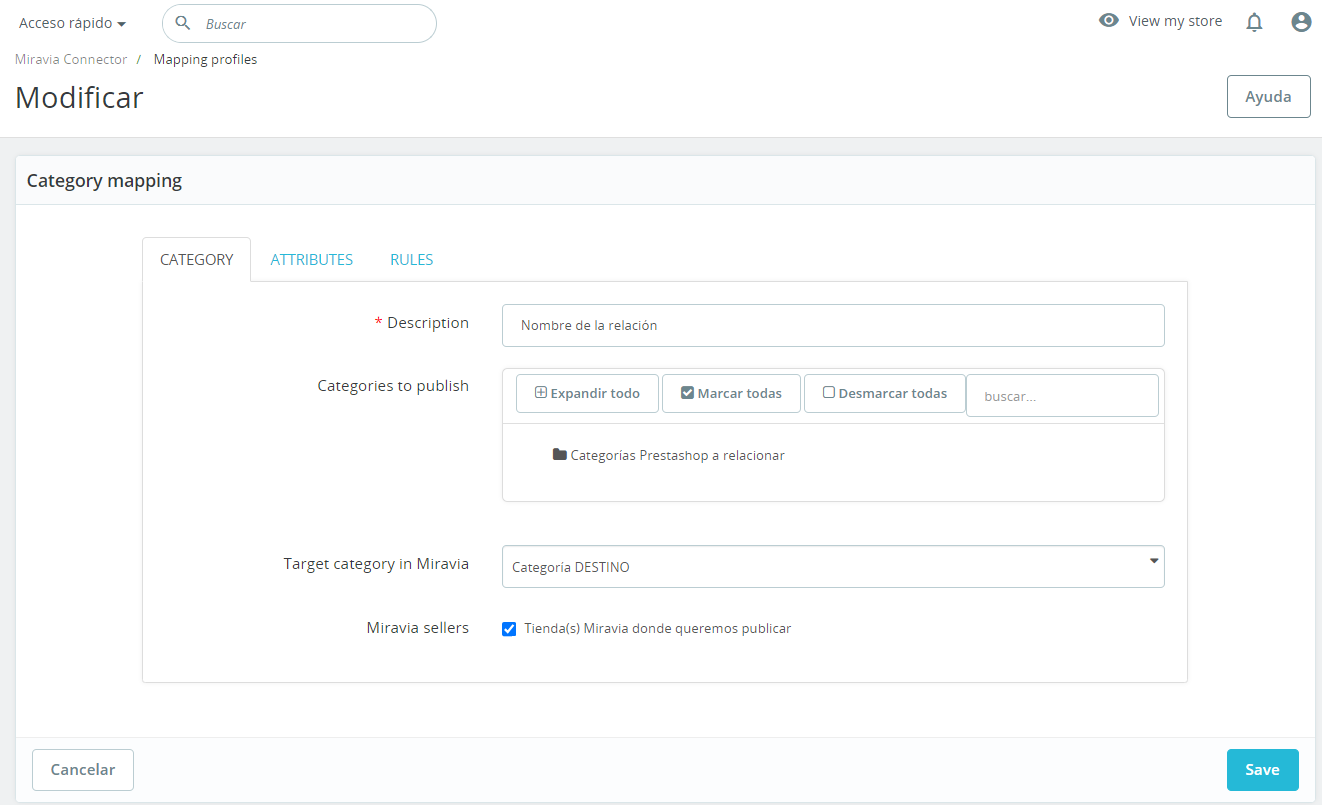
<span style="font-size: 11pt; font-family: Jost, sans-serif; background-color: transparent; font-weight: 400; font-style: normal; font-variant: normal; text-decoration: none; vertical-align: baseline; white-space: pre-wrap;">En la ventana “Mapping profiles” (ver 5.3 MAPPING PROFILES) iremos añadiendo las categorías de PrestaShop que se relacionan con cada categoría de Miravia. </span>
<span style="font-size: 11pt; font-family: Jost,sans-serif; color: #000000; background-color: transparent; font-weight: 400; font-style: normal; font-variant: normal; text-decoration: none; vertical-align: baseline; white-space: pre-wrap;"><span style="border: 1pt solid #000000; display: inline-block; overflow: hidden; width: 643px; height: 391px;">![Captura de pantalla 2024-07-25 105948.png](https://docs.miravia.wecomm.es/uploads/images/gallery/2024-07/captura-de-pantalla-2024-07-25-105948.png)</span></span>

<span style="font-size: 11pt; font-family: Jost,sans-serif; color: #999999; background-color: transparent; font-weight: 400; font-style: italic; font-variant: normal; text-decoration: none; vertical-align: baseline; white-space: pre-wrap;">Imagen 7.2.01 - Configuración nuevo mapping profile</span>

<span style="font-size: 11pt; font-family: Jost, sans-serif; background-color: transparent; font-weight: 400; font-style: normal; font-variant: normal; text-decoration: none; vertical-align: baseline; white-space: pre-wrap;">Al añadir un </span><span style="font-size: 11pt; font-family: Jost, sans-serif; background-color: transparent; font-weight: bold; font-style: normal; font-variant: normal; text-decoration: none; vertical-align: baseline; white-space: pre-wrap;">nuevo mapeo</span><span style="font-size: 11pt; font-family: Jost, sans-serif; background-color: transparent; font-weight: 400; font-style: normal; font-variant: normal; text-decoration: none; vertical-align: baseline; white-space: pre-wrap;">, de abajo hacia arriba, marcaremos en primer lugar la tienda de Miravia donde queremos publicar las categorías mapeadas (en caso de que tengamos más de una). Si solo tenemos una tienda, pues marcaremos esa tienda, lógicamente.</span><span style="font-size: 11pt; font-family: Jost, sans-serif; background-color: transparent; font-weight: 400; font-style: normal; font-variant: normal; text-decoration: none; vertical-align: baseline; white-space: pre-wrap;">  
</span><span style="font-size: 11pt; font-family: Jost, sans-serif; background-color: transparent; font-weight: 400; font-style: normal; font-variant: normal; text-decoration: none; vertical-align: baseline; white-space: pre-wrap;">  
</span><span style="font-size: 11pt; font-family: Jost, sans-serif; background-color: transparent; font-weight: 400; font-style: normal; font-variant: normal; text-decoration: none; vertical-align: baseline; white-space: pre-wrap;">Posteriormente debemos seleccionar la </span><span style="font-size: 11pt; font-family: Jost, sans-serif; background-color: transparent; font-weight: bold; font-style: normal; font-variant: normal; text-decoration: none; vertical-align: baseline; white-space: pre-wrap;">categoría de publicación de Miravia</span><span style="font-size: 11pt; font-family: Jost, sans-serif; background-color: transparent; font-weight: 400; font-style: normal; font-variant: normal; text-decoration: none; vertical-align: baseline; white-space: pre-wrap;">, la que anteriormente hemos llamado categoría DESTINO. Podemos buscar en el desplegable o hacer una búsqueda mediante texto.</span><span style="font-size: 11pt; font-family: Jost, sans-serif; background-color: transparent; font-weight: 400; font-style: normal; font-variant: normal; text-decoration: none; vertical-align: baseline; white-space: pre-wrap;">  
</span><span style="font-size: 11pt; font-family: Jost, sans-serif; background-color: transparent; font-weight: 400; font-style: normal; font-variant: normal; text-decoration: none; vertical-align: baseline; white-space: pre-wrap;">  
</span><span style="font-size: 11pt; font-family: Jost, sans-serif; background-color: transparent; font-weight: 400; font-style: normal; font-variant: normal; text-decoration: none; vertical-align: baseline; white-space: pre-wrap;">Seguidamente debemos marcar la(s) </span><span style="font-size: 11pt; font-family: Jost, sans-serif; background-color: transparent; font-weight: bold; font-style: normal; font-variant: normal; text-decoration: none; vertical-align: baseline; white-space: pre-wrap;">categoría(s) de nuestro PrestaShop</span><span style="font-size: 11pt; font-family: Jost, sans-serif; background-color: transparent; font-weight: 400; font-style: normal; font-variant: normal; text-decoration: none; vertical-align: baseline; white-space: pre-wrap;"> que queremos relacionar (categoría ORIGEN) con la categoría de Miravia. A modo de ayuda, abajo dejamos disponible un listado de referencia con los nombres de las categorías de Miravia, que puede ser útil para organizar previamente las relaciones entre categorías.</span><span style="font-size: 11pt; font-family: Jost,sans-serif; color: #000000; background-color: transparent; font-weight: 400; font-style: normal; font-variant: normal; text-decoration: none; vertical-align: baseline; white-space: pre-wrap;">  
</span><span style="font-size: 11pt; font-family: Jost,sans-serif; color: #000000; background-color: transparent; font-weight: 400; font-style: normal; font-variant: normal; text-decoration: none; vertical-align: baseline; white-space: pre-wrap;">  
</span><span style="color: rgb(17, 85, 204);">*[<span style="font-size: 11pt; font-family: Jost, sans-serif; background-color: transparent; font-weight: 400; font-variant: normal; text-decoration: none; vertical-align: baseline; white-space: pre-wrap;">Listado actualizado de categorías publicadas en Miravia</span>](https://docs.miravia.wecomm.es/books/listado-de-categorias-de-miravia/page/categorias-de-miravia "Listado categorías Miravia")*</span>

<span style="font-size: 11pt; font-family: Jost, sans-serif; background-color: transparent; font-weight: 400; font-style: normal; font-variant: normal; text-decoration: none; vertical-align: baseline; white-space: pre-wrap;">Para acabar con la pestaña categoría, debemos nombrar el mapping profile para reconocerlo fácilmente. Con esto, pasaremos a la pestaña “</span><span style="font-size: 11pt; font-family: Jost, sans-serif; background-color: transparent; font-weight: bold; font-style: normal; font-variant: normal; text-decoration: none; vertical-align: baseline; white-space: pre-wrap;">ATTRIBUTES</span><span style="font-size: 11pt; font-family: Jost, sans-serif; background-color: transparent; font-weight: 400; font-style: normal; font-variant: normal; text-decoration: none; vertical-align: baseline; white-space: pre-wrap;">”.</span>

<span style="font-size: 11pt; font-family: Jost, sans-serif; background-color: transparent; font-weight: 400; font-style: normal; font-variant: normal; text-decoration: none; vertical-align: baseline; white-space: pre-wrap;">Aquí, como se explicaba en 5.3.2 ATTRIBUTES, se puede </span><span style="font-size: 11pt; font-family: Jost, sans-serif; background-color: transparent; font-weight: bold; font-style: normal; font-variant: normal; text-decoration: none; vertical-align: baseline; white-space: pre-wrap;">relacionar características típicas</span><span style="font-size: 11pt; font-family: Jost, sans-serif; background-color: transparent; font-weight: 400; font-style: normal; font-variant: normal; text-decoration: none; vertical-align: baseline; white-space: pre-wrap;"> de los productos de una categoría de Miravia, con los atributos típicos de los productos de la(s) categoría(s) de PrestaShop relacionadas. </span><span style="font-size: 11pt; font-family: Jost, sans-serif; background-color: transparent; font-weight: 400; font-style: normal; font-variant: normal; text-decoration: none; vertical-align: baseline; white-space: pre-wrap;">  
</span><span style="font-size: 11pt; font-family: Jost, sans-serif; background-color: transparent; font-weight: 400; font-style: normal; font-variant: normal; text-decoration: none; vertical-align: baseline; white-space: pre-wrap;">  
</span><span style="font-size: 11pt; font-family: Jost, sans-serif; background-color: transparent; font-weight: 400; font-style: normal; font-variant: normal; text-decoration: none; vertical-align: baseline; white-space: pre-wrap;">Su utilidad reside en la página de producto de Miravia, donde podemos desplegar las características del producto. </span><span style="font-size: 11pt; font-family: Jost, sans-serif; background-color: transparent; font-weight: 400; font-style: normal; font-variant: normal; text-decoration: none; vertical-align: baseline; white-space: pre-wrap;">  
</span><span style="font-size: 11pt; font-family: Jost, sans-serif; background-color: transparent; font-weight: 400; font-style: normal; font-variant: normal; text-decoration: none; vertical-align: baseline; white-space: pre-wrap;">  
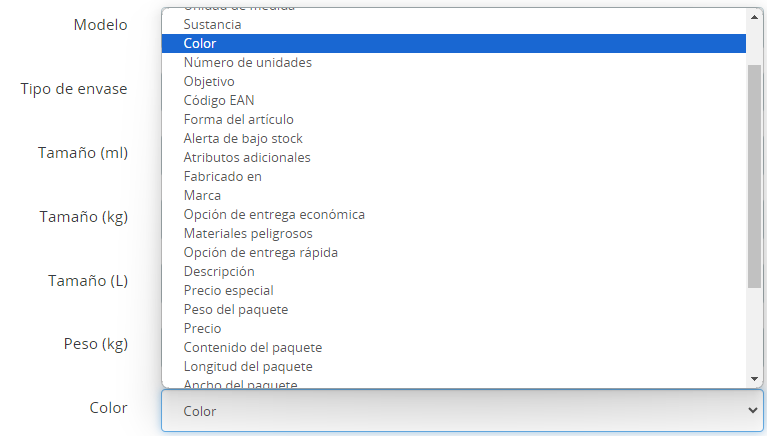
</span><span style="font-size: 11pt; font-family: Jost, sans-serif; background-color: transparent; font-weight: 400; font-style: normal; font-variant: normal; text-decoration: none; vertical-align: baseline; white-space: pre-wrap;">Los atributos fijos que encontramos, los define la categoría DESTINO de Miravia, mientras que los atributos heredados de PrestaShop aparecerán en los desplegables.</span>

<span style="font-size: 11pt; font-family: Jost,sans-serif; color: #000000; background-color: transparent; font-weight: 400; font-style: normal; font-variant: normal; text-decoration: none; vertical-align: baseline; white-space: pre-wrap;"><span style="border: 1pt solid #000000; display: inline-block; overflow: hidden; width: 643px; height: 324px;">![Captura de pantalla 2024-07-25 144508.png](https://docs.miravia.wecomm.es/uploads/images/gallery/2024-07/captura-de-pantalla-2024-07-25-144508.png)</span></span>

<span style="font-size: 11pt; font-family: Jost,sans-serif; color: #999999; background-color: transparent; font-weight: 400; font-style: italic; font-variant: normal; text-decoration: none; vertical-align: baseline; white-space: pre-wrap;">Imagen 7.2.02 - Relaciones entre atributos (1)</span>

<span style="font-size: 11pt; font-family: Jost,sans-serif; color: #000000; background-color: transparent; font-weight: 400; font-style: normal; font-variant: normal; text-decoration: none; vertical-align: baseline; white-space: pre-wrap;"><span style="border: 1pt solid #000000; display: inline-block; overflow: hidden; width: 643px; height: 365px;">![Captura de pantalla 2024-07-25 144654.png](https://docs.miravia.wecomm.es/uploads/images/gallery/2024-07/captura-de-pantalla-2024-07-25-144654.png)</span></span>

<span style="font-size: 11pt; font-family: Jost,sans-serif; color: #999999; background-color: transparent; font-weight: 400; font-style: italic; font-variant: normal; text-decoration: none; vertical-align: baseline; white-space: pre-wrap;">Imagen 7.2.03 - Relaciones entre atributos (2)</span>

<span style="font-weight: normal;">  
</span>

<span style="font-size: 11pt; font-family: Jost, sans-serif; background-color: transparent; font-weight: 400; font-style: normal; font-variant: normal; text-decoration: none; vertical-align: baseline; white-space: pre-wrap;">Una vez tengamos al menos una categoría DESTINO relacionada con categorías de PrestaShop, y atributos definidos (en algunas categorías son obligatorios, y en otras opcionales) podremos empezar a </span><span style="font-size: 11pt; font-family: Jost, sans-serif; background-color: transparent; font-weight: bold; font-style: normal; font-variant: normal; text-decoration: none; vertical-align: baseline; white-space: pre-wrap;">subir los primeros producto</span><span style="font-size: 11pt; font-family: Jost, sans-serif; background-color: transparent; font-weight: 400; font-style: normal; font-variant: normal; text-decoration: none; vertical-align: baseline; white-space: pre-wrap;">s (ver 8. Subida de productos a Miravia).</span>

# 8. Subida de productos a Miravia

Visto los pasos necesarios para definir el filtrado de productos, podemos subir la categoría mapeada con el botón “**Send new products**”.   
  
Esto generará un **feed**, y nos lo mostrará en un banner superior. En este momento, los productos han empezado a sincronizarse.   
  
Podemos hacer un seguimiento desde el panel principal “**Dashboard**” y comprobar en la tabla “**Pending Feeds**” el procesado de la subida de productos, o cualquier otra acción que provoquemos.  
  
Una vez se hayan subido, podremos ver en el Centro de vendedor (Miravia Seller Center) si los productos se han sincronizado correctamente o no, y en caso afirmativo, comprobar si están activos o inactivos. ¡Los productos activos ya están a la venta!  
  
Para descargar esta información en el módulo, tendremos que ir a la ventana de “**Seller accounts**” y pulsar el primer botón de abajo “**Check Miravia Products**”. Una vez acabe el proceso, nos indicará si hay discrepancias entre la información de Miravia y la de PrestaShop. Si tenemos errores de sincronización en algunos productos, quedarán marcados y agrupados por el error, para poder localizarlos fácilmente desde la ventana “**Products**” y corregir el error de sincronización.

# 9. Gestión de pedidos de Miravia

<span style="font-size: 11pt; font-family: Jost, sans-serif; background-color: transparent; font-weight: 400; font-style: normal; font-variant: normal; text-decoration: none; vertical-align: baseline; white-space: pre-wrap;">Miravia contempla dos formas de enviar pedidos: **DBM (Delivery by Miravia)** y **DBS (Delivery by seller)**. En el caso de DBM es Miravia quien propone a **GLS como repartidor**, y es el método de envío mayoritario, mientras que DBS se usa en el menor de los casos.</span>

### <span style="font-size: 15pt; font-family: Jost,sans-serif; color: #28897f; background-color: transparent; font-weight: 500; font-style: normal; font-variant: normal; text-decoration: none; vertical-align: baseline; white-space: pre-wrap;">9.1 DBM - Delivery by Miravia</span>

<span style="font-size: 11pt; font-family: Jost, sans-serif; background-color: transparent; font-weight: 400; font-style: normal; font-variant: normal; text-decoration: none; vertical-align: baseline; white-space: pre-wrap;">Detectaremos un nuevo pedido en las notificaciones de PrestaShop (icono de campana de notificación). Podemos localizarlo desde las propias notificaciones, desde la ventana “</span><span style="font-size: 11pt; font-family: Jost, sans-serif; background-color: transparent; font-weight: bold; font-style: normal; font-variant: normal; text-decoration: none; vertical-align: baseline; white-space: pre-wrap;">Orders</span><span style="font-size: 11pt; font-family: Jost, sans-serif; background-color: transparent; font-weight: 400; font-style: normal; font-variant: normal; text-decoration: none; vertical-align: baseline; white-space: pre-wrap;">” en el módulo, y desde la ventana nativa “</span><span style="font-size: 11pt; font-family: Jost, sans-serif; background-color: transparent; font-weight: bold; font-style: normal; font-variant: normal; text-decoration: none; vertical-align: baseline; white-space: pre-wrap;">Pedidos</span><span style="font-size: 11pt; font-family: Jost, sans-serif; background-color: transparent; font-weight: 400; font-style: normal; font-variant: normal; text-decoration: none; vertical-align: baseline; white-space: pre-wrap;">” de PrestaShop.</span>

<span style="font-size: 11pt; font-family: Jost,sans-serif; color: #000000; background-color: transparent; font-weight: 400; font-style: normal; font-variant: normal; text-decoration: none; vertical-align: baseline; white-space: pre-wrap;"><span style="border: 1pt solid #000000; display: inline-block; overflow: hidden; width: 643px; height: 273px;">![Captura de pantalla 2024-07-25 073802.png](https://docs.miravia.wecomm.es/uploads/images/gallery/2024-07/captura-de-pantalla-2024-07-25-073802.png)</span></span>

<span style="font-size: 11pt; font-family: Jost,sans-serif; color: #999999; background-color: transparent; font-weight: 400; font-style: italic; font-variant: normal; text-decoration: none; vertical-align: baseline; white-space: pre-wrap;">Imagen 9.1.01 - Tabla de pedidos del módulo</span>

<span style="font-size: 11pt; font-family: Jost,sans-serif; color: #000000; background-color: transparent; font-weight: 400; font-style: normal; font-variant: normal; text-decoration: none; vertical-align: baseline; white-space: pre-wrap;"><span style="border: 1pt solid #000000; display: inline-block; overflow: hidden; width: 643px; height: 239px;">![Captura de pantalla 2024-07-25 074238.png](https://docs.miravia.wecomm.es/uploads/images/gallery/2024-07/captura-de-pantalla-2024-07-25-074238.png)</span></span>

<span style="font-size: 11pt; font-family: Jost,sans-serif; color: #999999; background-color: transparent; font-weight: 400; font-style: italic; font-variant: normal; text-decoration: none; vertical-align: baseline; white-space: pre-wrap;">Imagen 9.1.02 - Tabla de pedidos de PrestaShop</span>

<span style="font-size: 11pt; font-family: Jost, sans-serif; background-color: transparent; font-weight: 400; font-style: normal; font-variant: normal; text-decoration: none; vertical-align: baseline; white-space: pre-wrap;">Una vez preparado el pedido, observa que desde la tabla de pedidos del módulo de Miravia hay una columna “</span><span style="font-size: 11pt; font-family: Jost, sans-serif; background-color: transparent; font-weight: bold; font-style: normal; font-variant: normal; text-decoration: none; vertical-align: baseline; white-space: pre-wrap;">Actions</span><span style="font-size: 11pt; font-family: Jost, sans-serif; background-color: transparent; font-weight: 400; font-style: normal; font-variant: normal; text-decoration: none; vertical-align: baseline; white-space: pre-wrap;">”. Aquí encontraremos 2 botones, “</span><span style="font-size: 11pt; font-family: Jost, sans-serif; background-color: transparent; font-weight: bold; font-style: normal; font-variant: normal; text-decoration: none; vertical-align: baseline; white-space: pre-wrap;">Print order</span><span style="font-size: 11pt; font-family: Jost, sans-serif; background-color: transparent; font-weight: 400; font-style: normal; font-variant: normal; text-decoration: none; vertical-align: baseline; white-space: pre-wrap;">” y “</span><span style="font-size: 11pt; font-family: Jost, sans-serif; background-color: transparent; font-weight: bold; font-style: normal; font-variant: normal; text-decoration: none; vertical-align: baseline; white-space: pre-wrap;">Pack</span><span style="font-size: 11pt; font-family: Jost, sans-serif; background-color: transparent; font-weight: 400; font-style: normal; font-variant: normal; text-decoration: none; vertical-align: baseline; white-space: pre-wrap;">”, desde donde deberemos, descargar la orden del pedido de Miravia y generar la orden de recogida del repartidor (recordemos que nos encontramos en un envío DBM, por lo que el repartidor será GLS). Una vez empaquetado, estará disponible el botón “</span><span style="font-size: 11pt; font-family: Jost, sans-serif; background-color: transparent; font-weight: bold; font-style: normal; font-variant: normal; text-decoration: none; vertical-align: baseline; white-space: pre-wrap;">Print label</span><span style="font-size: 11pt; font-family: Jost, sans-serif; background-color: transparent; font-weight: 400; font-style: normal; font-variant: normal; text-decoration: none; vertical-align: baseline; white-space: pre-wrap;">” (ver imagen 5.6.01) mediante el cuál imprimiremos la etiqueta del pedido para ponerla en el paquete. Con esto hecho, solo nos queda esperar al repartidor y entregarle el pedido de nuestro cliente.</span>

### <span style="font-size: 15pt; font-family: Jost,sans-serif; color: #28897f; background-color: transparent; font-weight: 500; font-style: normal; font-variant: normal; text-decoration: none; vertical-align: baseline; white-space: pre-wrap;">9.2 DBS - Delivery by Seller</span>

<span style="font-size: 11pt; font-family: Jost, sans-serif; background-color: transparent; font-weight: 400; font-style: normal; font-variant: normal; text-decoration: none; vertical-align: baseline; white-space: pre-wrap;">Es importante resaltar que </span><span style="font-size: 11pt; font-family: Jost, sans-serif; background-color: transparent; font-weight: bold; font-style: normal; font-variant: normal; text-decoration: none; vertical-align: baseline; white-space: pre-wrap;">no todos los vendedores tienen acceso</span><span style="font-size: 11pt; font-family: Jost, sans-serif; background-color: transparent; font-weight: 400; font-style: normal; font-variant: normal; text-decoration: none; vertical-align: baseline; white-space: pre-wrap;"> a usar este método de envío. En primer lugar, debe ser tu </span><span style="font-size: 11pt; font-family: Jost, sans-serif; background-color: transparent; font-weight: bold; font-style: normal; font-variant: normal; text-decoration: none; vertical-align: baseline; white-space: pre-wrap;">account manager</span><span style="font-size: 11pt; font-family: Jost, sans-serif; background-color: transparent; font-weight: 400; font-style: normal; font-variant: normal; text-decoration: none; vertical-align: baseline; white-space: pre-wrap;"> el que </span><span style="font-size: 11pt; font-family: Jost, sans-serif; background-color: transparent; font-weight: bold; font-style: normal; font-variant: normal; text-decoration: none; vertical-align: baseline; white-space: pre-wrap;">solicita internamente</span><span style="font-size: 11pt; font-family: Jost, sans-serif; background-color: transparent; font-weight: 400; font-style: normal; font-variant: normal; text-decoration: none; vertical-align: baseline; white-space: pre-wrap;"> si tu tienda puede hacer uso de DBS.</span><span style="font-size: 11pt; font-family: Jost, sans-serif; background-color: transparent; font-weight: 400; font-style: normal; font-variant: normal; text-decoration: none; vertical-align: baseline; white-space: pre-wrap;">  
</span><span style="font-size: 11pt; font-family: Jost, sans-serif; background-color: transparent; font-weight: 400; font-style: normal; font-variant: normal; text-decoration: none; vertical-align: baseline; white-space: pre-wrap;">  
</span><span style="font-size: 11pt; font-family: Jost, sans-serif; background-color: transparent; font-weight: 400; font-style: normal; font-variant: normal; text-decoration: none; vertical-align: baseline; white-space: pre-wrap;">Si aprueban la solicitud, primero hay que configurar los ajustes necesarios desde el Centro de vendedor (Miravia Seller Center).</span><span style="font-size: 11pt; font-family: Jost,sans-serif; color: #000000; background-color: transparent; font-weight: 400; font-style: normal; font-variant: normal; text-decoration: none; vertical-align: baseline; white-space: pre-wrap;">  
</span><span style="font-size: 11pt; font-family: Jost,sans-serif; color: #000000; background-color: transparent; font-weight: 400; font-style: normal; font-variant: normal; text-decoration: none; vertical-align: baseline; white-space: pre-wrap;">  
</span>*[<span style="font-size: 11pt; font-family: Jost, sans-serif; color: rgb(17, 85, 204); background-color: transparent; font-weight: 400; font-variant: normal; text-decoration: underline; text-decoration-skip-ink: none; vertical-align: baseline; white-space: pre-wrap;">Información sobre el servicio DBS</span>](https://sellercenter.miravia.es/seller/helpcenter/servicio-dbs-informacion-inicial-y-faqs-384.html)*

<span style="font-size: 11pt; font-family: Jost, sans-serif; background-color: transparent; font-weight: 400; font-style: normal; font-variant: normal; text-decoration: none; vertical-align: baseline; white-space: pre-wrap;">Después de configurar tu tienda para poder envíar por tu cuenta, solo faltaría modificar los productos que se vayan a envíar de este modo o añadir nuevos que lo hagan. </span><span style="font-size: 11pt; font-family: Jost, sans-serif; background-color: transparent; font-weight: 400; font-style: normal; font-variant: normal; text-decoration: none; vertical-align: baseline; white-space: pre-wrap;">  
</span><span style="font-size: 11pt; font-family: Jost, sans-serif; background-color: transparent; font-weight: 400; font-style: normal; font-variant: normal; text-decoration: none; vertical-align: baseline; white-space: pre-wrap;">  
</span><span style="font-size: 11pt; font-family: Jost, sans-serif; background-color: transparent; font-weight: 400; font-style: normal; font-variant: normal; text-decoration: none; vertical-align: baseline; white-space: pre-wrap;">A partir de aquí, la gestión del pedido no difiere en esencia de los pedidos DBM.</span>

# 10. Solución de problemas

Si experimenta problemas o desactualizaciones con el módulo, por favor abra un ticket en *[https://soporte.wecomm.es/](https://soporte.wecomm.es/)*

### <span style="font-size: 15pt; font-family: Jost,sans-serif; color: #28897f; background-color: transparent; font-weight: 500; font-style: normal; font-variant: normal; text-decoration: none; vertical-align: baseline; white-space: pre-wrap;">SOLUCIÓN A PROBLEMAS COMUNES</span>

1. Anexo I - [Solución campo “unidad de medida” vacío](https://docs.miravia.wecomm.es/books/anexo-i/page/anexo-i-solucion-campo-unidad-de-medida-vacio) (v. 1.0.52)
2. Anexo II - [Solución sobreescritura de campos al actualizar información](https://docs.miravia.wecomm.es/books/anexo-ii/page/anexo-ii-solucion-sobreescritura-de-campos-al-actualizar-informacion) (v. 1.0.55)
3. Anexo III - [Solución cumplimiento normativa GPSR](https://docs.miravia.wecomm.es/books/anexo-iii/page/anexo-iii-solucion-cumplimiento-normativa-gpsr) (v. 1.0.55)