# 5. Contenido del módulo

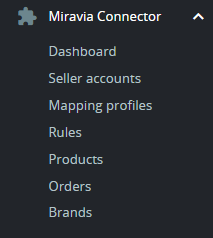
<span style="font-size: 11pt; font-family: Jost, sans-serif; background-color: transparent; font-weight: 400; font-style: normal; font-variant: normal; text-decoration: none; vertical-align: baseline; white-space: pre-wrap;">Al contenido del módulo se accede mediante el menú de herramientas de PrestaShop situado en el margen izquierdo de la pantalla. </span>
<span style="font-size: 11pt; font-family: Jost,sans-serif; color: #000000; background-color: transparent; font-weight: 400; font-style: normal; font-variant: normal; text-decoration: none; vertical-align: baseline; white-space: pre-wrap;"><span style="border: none; display: inline-block; overflow: hidden; width: 213px; height: 238px;">![Captura de pantalla 2024-07-24 144741.png](https://docs.miravia.wecomm.es/uploads/images/gallery/2024-07/captura-de-pantalla-2024-07-24-144741.png)</span></span>

<span style="font-size: 11pt; font-family: Jost,sans-serif; color: #999999; background-color: transparent; font-weight: 400; font-style: italic; font-variant: normal; text-decoration: none; vertical-align: baseline; white-space: pre-wrap;">Imagen 5.01 - Ventanas disponibles en el menú de herramientas del módulo</span>

### <span style="font-size: 15pt; font-family: Jost,sans-serif; color: #28897f; background-color: transparent; font-weight: 500; font-style: normal; font-variant: normal; text-decoration: none; vertical-align: baseline; white-space: pre-wrap;">5.1 DASHBOARD/INICIO</span>

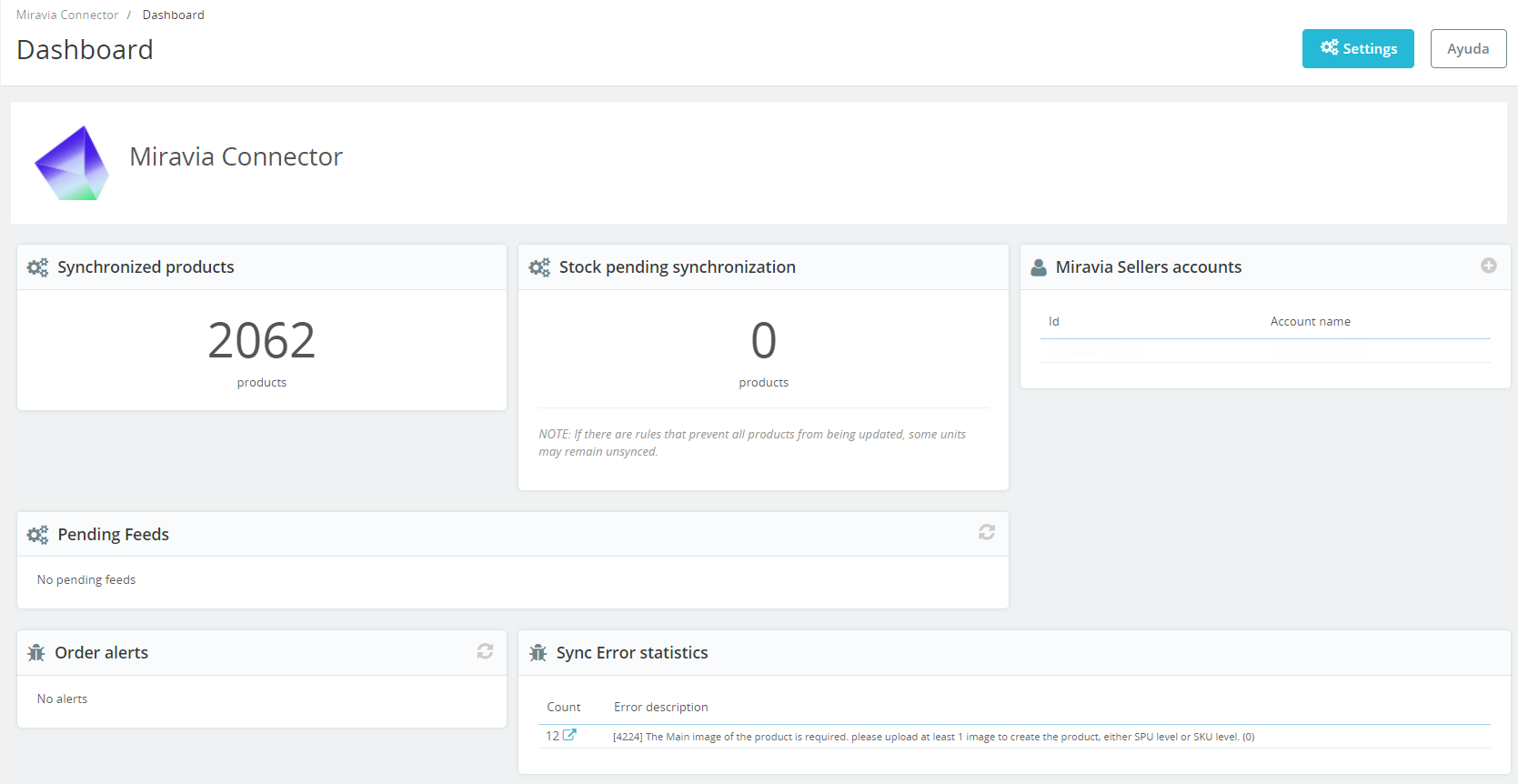
<span style="font-size: 11pt; font-family: Jost, sans-serif; background-color: transparent; font-weight: bold; font-style: normal; font-variant: normal; text-decoration: none; vertical-align: baseline; white-space: pre-wrap;">Panel principal</span><span style="font-size: 11pt; font-family: Jost, sans-serif; background-color: transparent; font-weight: 400; font-style: normal; font-variant: normal; text-decoration: none; vertical-align: baseline; white-space: pre-wrap;"> con datos interesantes en una sola vista. Desde aquí podemos ver la cantidad de productos sincronizados con Miravia, la cantidad de stock pendiente de sincronizar, las cuentas (tiendas Miravia) vinculadas a la tienda de PrestaShop, feeds pendientes (ver “</span><span style="font-size: 11pt; font-family: Jost, sans-serif; background-color: transparent; font-weight: bold; font-style: normal; font-variant: normal; text-decoration: none; vertical-align: baseline; white-space: pre-wrap;">Mapping profiles</span><span style="font-size: 11pt; font-family: Jost, sans-serif; background-color: transparent; font-weight: 400; font-style: normal; font-variant: normal; text-decoration: none; vertical-align: baseline; white-space: pre-wrap;">”), alertas en pedidos, y errores en la sincronización de productos.</span><span style="font-size: 11pt; font-family: Jost, sans-serif; background-color: transparent; font-weight: 400; font-style: normal; font-variant: normal; text-decoration: none; vertical-align: baseline; white-space: pre-wrap;">  
</span><span style="font-size: 11pt; font-family: Jost, sans-serif; background-color: transparent; font-weight: 400; font-style: normal; font-variant: normal; text-decoration: none; vertical-align: baseline; white-space: pre-wrap;">  
</span><span style="font-size: 11pt; font-family: Jost, sans-serif; background-color: transparent; font-weight: 400; font-style: normal; font-variant: normal; text-decoration: none; vertical-align: baseline; white-space: pre-wrap;">Los productos sincronizados son la cantidad de productos publicados en Miravia. Son la suma de productos </span><span style="font-size: 11pt; font-family: Jost, sans-serif; background-color: transparent; font-weight: bold; font-style: normal; font-variant: normal; text-decoration: none; vertical-align: baseline; white-space: pre-wrap;">activos</span><span style="font-size: 11pt; font-family: Jost, sans-serif; background-color: transparent; font-weight: 400; font-style: normal; font-variant: normal; text-decoration: none; vertical-align: baseline; white-space: pre-wrap;"> (a la venta) e </span><span style="font-size: 11pt; font-family: Jost, sans-serif; background-color: transparent; font-weight: bold; font-style: normal; font-variant: normal; text-decoration: none; vertical-align: baseline; white-space: pre-wrap;">inactivos</span><span style="font-size: 11pt; font-family: Jost, sans-serif; background-color: transparent; font-weight: 400; font-style: normal; font-variant: normal; text-decoration: none; vertical-align: baseline; white-space: pre-wrap;"> (están subidos a Miravia pero presentan un error y no se han publicado). Así mismo, los productos </span><span style="font-size: 11pt; font-family: Jost, sans-serif; background-color: transparent; font-weight: bold; font-style: normal; font-variant: normal; text-decoration: none; vertical-align: baseline; white-space: pre-wrap;">no sincronizados</span><span style="font-size: 11pt; font-family: Jost, sans-serif; background-color: transparent; font-weight: 400; font-style: normal; font-variant: normal; text-decoration: none; vertical-align: baseline; white-space: pre-wrap;"> (no se han llegado a subir a Miravia por algún tipo de error) aparecerán en la tabla de errores de sincronización.</span>

<span style="font-size: 11pt; font-family: Jost,sans-serif; color: #000000; background-color: transparent; font-weight: 400; font-style: normal; font-variant: normal; text-decoration: none; vertical-align: baseline; white-space: pre-wrap;"><span style="border: 1pt solid #000000; display: inline-block; overflow: hidden; width: 643px; height: 332px;">![Captura de pantalla 2024-07-24 145000.png](https://docs.miravia.wecomm.es/uploads/images/gallery/2024-07/captura-de-pantalla-2024-07-24-145000.png)</span></span>

<span style="font-size: 11pt; font-family: Jost,sans-serif; color: #999999; background-color: transparent; font-weight: 400; font-style: italic; font-variant: normal; text-decoration: none; vertical-align: baseline; white-space: pre-wrap;">Imagen 5.1.01 - Ventana “Dashboard”</span><span style="font-size: 11pt; font-family: Jost,sans-serif; color: #000000; background-color: transparent; font-weight: 400; font-style: normal; font-variant: normal; text-decoration: none; vertical-align: baseline; white-space: pre-wrap;">  
  
</span>

*<span style="font-size: 11pt; font-family: Jost, sans-serif; background-color: transparent; font-weight: 400; font-variant: normal; text-decoration: none; vertical-align: baseline; white-space: pre-wrap;">Nota: En la imagen, se observan 2062 productos sincronizados (activos + inactivos) + 12 productos no sincronizados = 2074 productos procesados.</span>*

### <span style="font-size: 15pt; font-family: Jost,sans-serif; color: #28897f; background-color: transparent; font-weight: 500; font-style: normal; font-variant: normal; text-decoration: none; vertical-align: baseline; white-space: pre-wrap;">5.2 SELLER ACCOUNTS</span>

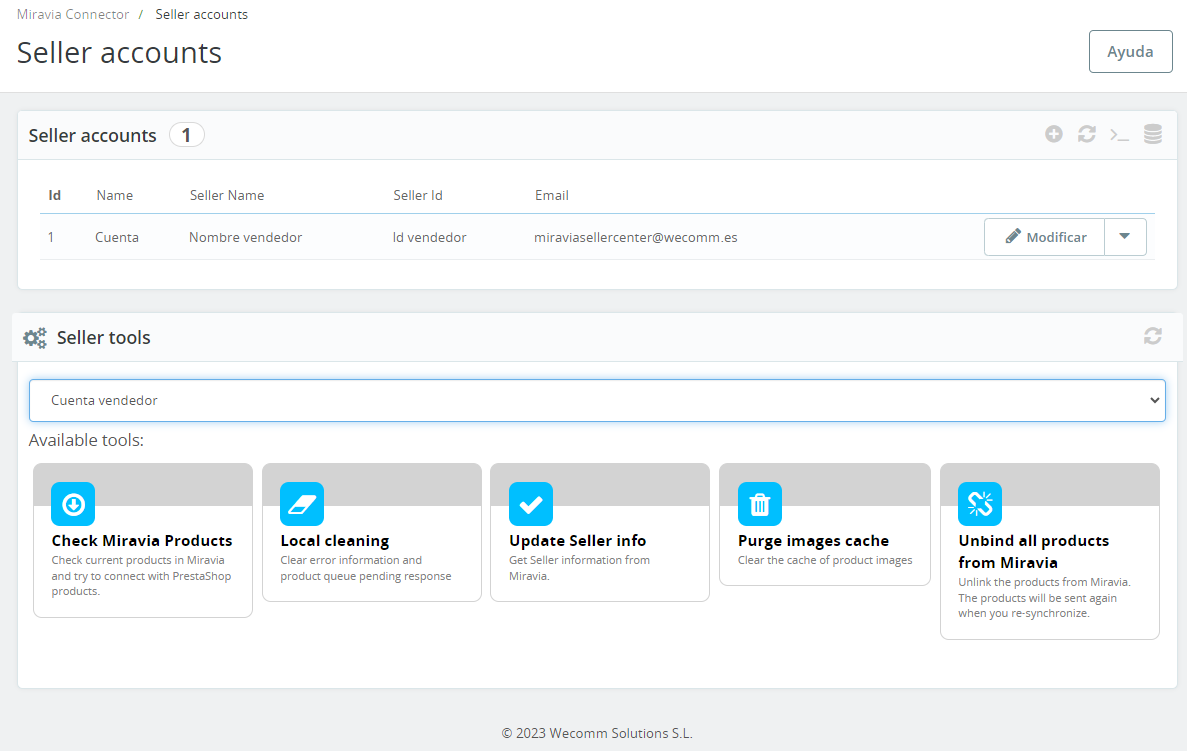
<span style="font-size: 11pt; font-family: Jost, sans-serif; background-color: transparent; font-weight: 400; font-style: normal; font-variant: normal; text-decoration: none; vertical-align: baseline; white-space: pre-wrap;">Panel de </span><span style="font-size: 11pt; font-family: Jost, sans-serif; background-color: transparent; font-weight: bold; font-style: normal; font-variant: normal; text-decoration: none; vertical-align: baseline; white-space: pre-wrap;">cuentas de vendedor</span><span style="font-size: 11pt; font-family: Jost, sans-serif; background-color: transparent; font-weight: 400; font-style: normal; font-variant: normal; text-decoration: none; vertical-align: baseline; white-space: pre-wrap;"> y herramientas. Aquí podremos sincronizar una o varias cuentas de Miravia con nuestra tienda PrestaShop, pulsando sobre el botón “</span><span style="font-size: 11pt; font-family: Jost, sans-serif; background-color: transparent; font-weight: bold; font-style: normal; font-variant: normal; text-decoration: none; vertical-align: baseline; white-space: pre-wrap;">Añadir nuevo</span><span style="font-size: 11pt; font-family: Jost, sans-serif; background-color: transparent; font-weight: 400; font-style: normal; font-variant: normal; text-decoration: none; vertical-align: baseline; white-space: pre-wrap;">” en la tabla “</span><span style="font-size: 11pt; font-family: Jost, sans-serif; background-color: transparent; font-weight: bold; font-style: normal; font-variant: normal; text-decoration: none; vertical-align: baseline; white-space: pre-wrap;">Seller accounts</span><span style="font-size: 11pt; font-family: Jost, sans-serif; background-color: transparent; font-weight: 400; font-style: normal; font-variant: normal; text-decoration: none; vertical-align: baseline; white-space: pre-wrap;">”. Una vez esté la cuenta añadida, podemos editar información haciendo clic sobre ella. </span><span style="font-size: 11pt; font-family: Jost, sans-serif; background-color: transparent; font-weight: 400; font-style: normal; font-variant: normal; text-decoration: none; vertical-align: baseline; white-space: pre-wrap;">  
</span><span style="font-size: 11pt; font-family: Jost, sans-serif; background-color: transparent; font-weight: 400; font-style: normal; font-variant: normal; text-decoration: none; vertical-align: baseline; white-space: pre-wrap;">  
</span><span style="font-size: 11pt; font-family: Jost, sans-serif; background-color: transparent; font-weight: 400; font-style: italic; font-variant: normal; text-decoration: none; vertical-align: baseline; white-space: pre-wrap;">Nota: Si tenemos más de una cuenta en Miravia, al mapear las categorías podremos filtrar qué productos subiremos a cada cuenta. Información ampliada en el apartado 5.3 MAPPING PROFILES.</span>

<span style="font-size: 11pt; font-family: Jost, sans-serif; background-color: transparent; font-weight: 400; font-style: normal; font-variant: normal; text-decoration: none; vertical-align: baseline; white-space: pre-wrap;">  
</span><span style="font-size: 11pt; font-family: Jost, sans-serif; background-color: transparent; font-weight: 400; font-style: normal; font-variant: normal; text-decoration: none; vertical-align: baseline; white-space: pre-wrap;">La tabla “</span><span style="font-size: 11pt; font-family: Jost, sans-serif; background-color: transparent; font-weight: bold; font-style: normal; font-variant: normal; text-decoration: none; vertical-align: baseline; white-space: pre-wrap;">Seller tools</span><span style="font-size: 11pt; font-family: Jost, sans-serif; background-color: transparent; font-weight: 400; font-style: normal; font-variant: normal; text-decoration: none; vertical-align: baseline; white-space: pre-wrap;">” será la que más usemos. Se selecciona la cuenta sobre la que queramos trabajar y con los botones de abajo podemos comprobar los productos de Miravia (partiendo de los productos sincronizados con Miravia, el módulo intenta relacionarlos con los productos del PrestaShop, e identifica diferencias, por ejemplo, de stock), borrar información de errores y cola de productos pendientes de respuesta, obtener información del perfil de vendedor desde Miravia, limpiar el caché de imágenes de producto, y desincronizar productos en Miravia.</span><span style="font-size: 11pt; font-family: Jost, sans-serif; background-color: transparent; font-weight: 400; font-style: normal; font-variant: normal; text-decoration: none; vertical-align: baseline; white-space: pre-wrap;">  
</span>

<span style="font-size: 11pt; font-family: Jost,sans-serif; color: #000000; background-color: transparent; font-weight: 400; font-style: normal; font-variant: normal; text-decoration: none; vertical-align: baseline; white-space: pre-wrap;"><span style="border: 1pt solid #000000; display: inline-block; overflow: hidden; width: 643px; height: 407px;">![Captura de pantalla 2024-07-25 085547.png](https://docs.miravia.wecomm.es/uploads/images/gallery/2024-07/captura-de-pantalla-2024-07-25-085547.png)</span></span>

<span style="font-size: 11pt; font-family: Jost,sans-serif; color: #999999; background-color: transparent; font-weight: 400; font-style: italic; font-variant: normal; text-decoration: none; vertical-align: baseline; white-space: pre-wrap;">Imagen 5.2.01 - Ventana “Seller accounts”</span><span style="font-size: 11pt; font-family: Jost,sans-serif; color: #000000; background-color: transparent; font-weight: 400; font-style: normal; font-variant: normal; text-decoration: none; vertical-align: baseline; white-space: pre-wrap;">  
  
</span>

### <span style="font-size: 15pt; font-family: Jost,sans-serif; color: #28897f; background-color: transparent; font-weight: 500; font-style: normal; font-variant: normal; text-decoration: none; vertical-align: baseline; white-space: pre-wrap;">5.3 MAPPING PROFILES</span>

<span style="font-size: 11pt; font-family: Jost, sans-serif; background-color: transparent; font-weight: 400; font-style: normal; font-variant: normal; text-decoration: none; vertical-align: baseline; white-space: pre-wrap;">Panel donde se establecen las </span><span style="font-size: 11pt; font-family: Jost, sans-serif; background-color: transparent; font-weight: bold; font-style: normal; font-variant: normal; text-decoration: none; vertical-align: baseline; white-space: pre-wrap;">relaciones entre las categorías de productos</span><span style="font-size: 11pt; font-family: Jost, sans-serif; background-color: transparent; font-weight: 400; font-style: normal; font-variant: normal; text-decoration: none; vertical-align: baseline; white-space: pre-wrap;"> de nuestro PrestaShop y las categorías de publicación de Miravia. Visualmente es muy parecido a la página de 5.2 SELLER ACCOUNTS. Sobre el botón de “</span><span style="font-size: 11pt; font-family: Jost, sans-serif; background-color: transparent; font-weight: bold; font-style: normal; font-variant: normal; text-decoration: none; vertical-align: baseline; white-space: pre-wrap;">Añadir nuevo</span><span style="font-size: 11pt; font-family: Jost, sans-serif; background-color: transparent; font-weight: 400; font-style: normal; font-variant: normal; text-decoration: none; vertical-align: baseline; white-space: pre-wrap;">” crearemos una nueva relación. Aparecerán 3 pestañas:</span>

<span style="font-size: 11pt; font-family: Jost,sans-serif; color: #28897f; background-color: transparent; font-weight: 400; font-style: normal; font-variant: normal; text-decoration: none; vertical-align: baseline; white-space: pre-wrap;">5.3.1 CATEGORY</span>

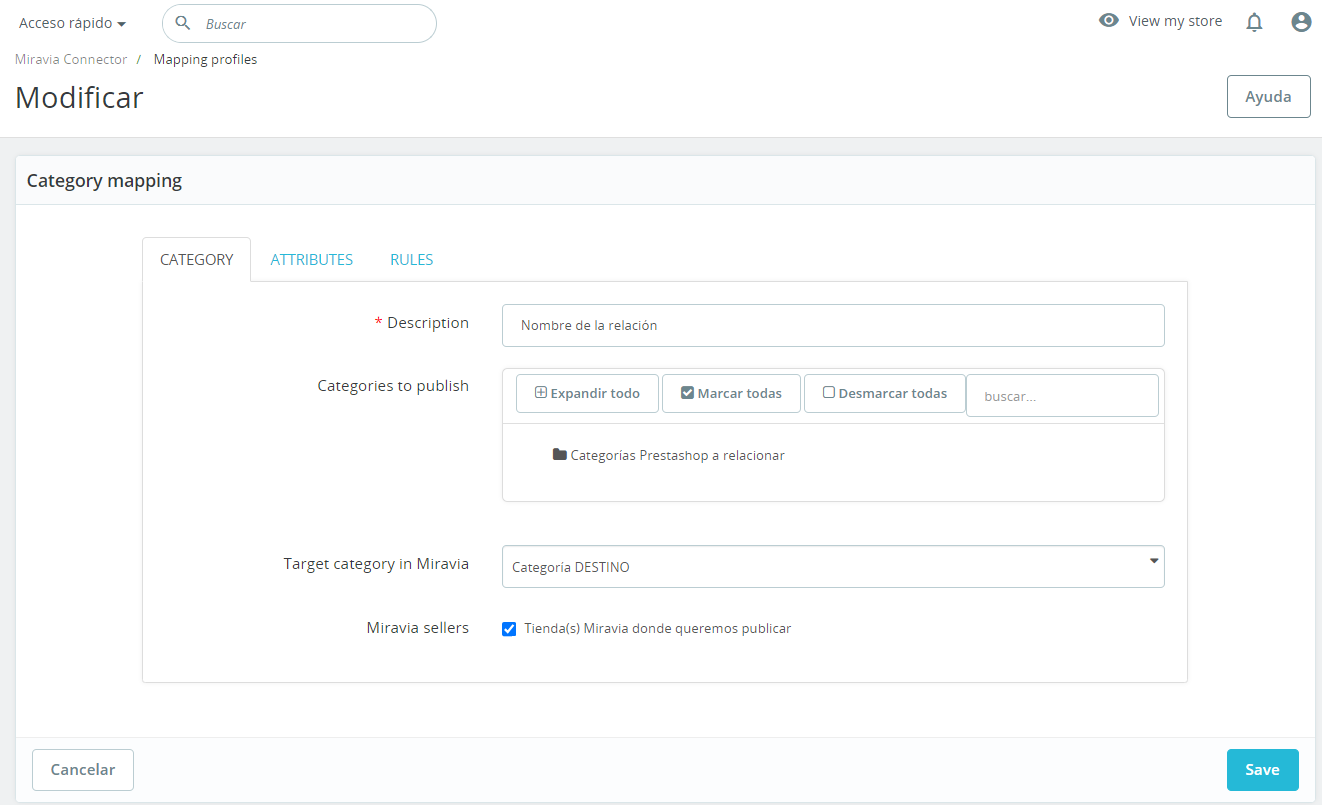
<span style="font-size: 11pt; font-family: Jost, sans-serif; background-color: transparent; font-weight: 400; font-style: normal; font-variant: normal; text-decoration: none; vertical-align: baseline; white-space: pre-wrap;">Contiene el nombre asignado a la relación, las categorías de PrestaShop a publicar (categorías ORIGEN), la categoría de Miravia relacionada con la(s) de PrestaShop (categoría DESTINO) y las tiendas de Miravia en las que quieres publicar (entre las que previamente has añadido).</span>

<span style="font-size: 11pt; font-family: Jost,sans-serif; color: #000000; background-color: transparent; font-weight: 400; font-style: normal; font-variant: normal; text-decoration: none; vertical-align: baseline; white-space: pre-wrap;"><span style="border: 1pt solid #000000; display: inline-block; overflow: hidden; width: 643px; height: 391px;">![Captura de pantalla 2024-07-25 105948.png](https://docs.miravia.wecomm.es/uploads/images/gallery/2024-07/captura-de-pantalla-2024-07-25-105948.png)</span></span>

<span style="font-size: 11pt; font-family: Jost,sans-serif; color: #999999; background-color: transparent; font-weight: 400; font-style: italic; font-variant: normal; text-decoration: none; vertical-align: baseline; white-space: pre-wrap;">Imagen 5.3.1.01 - Pestaña “CATEGORY”</span>

<span style="font-size: 11pt; font-family: Jost,sans-serif; color: #28897f; background-color: transparent; font-weight: 400; font-style: normal; font-variant: normal; text-decoration: none; vertical-align: baseline; white-space: pre-wrap;">5.3.2 ATTRIBUTES</span>

<span style="font-size: 11pt; font-family: Jost, sans-serif; background-color: transparent; font-weight: 400; font-style: normal; font-variant: normal; text-decoration: none; vertical-align: baseline; white-space: pre-wrap;">Aquí se pueden relacionar las características y atributos de los productos asociados a la categoría de Miravia (categoría DESTINO) con las características y atributos definidos en PrestaShop.</span>

<span style="font-size: 11pt; font-family: Jost,sans-serif; color: #28897f; background-color: transparent; font-weight: 400; font-style: normal; font-variant: normal; text-decoration: none; vertical-align: baseline; white-space: pre-wrap;">5.3.3 RULES</span>

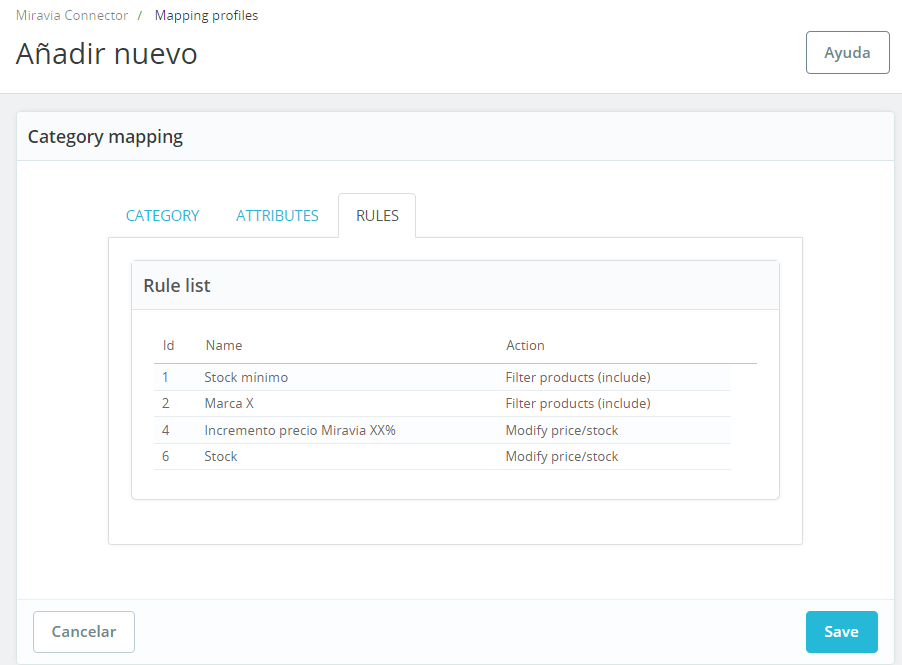
<span style="font-size: 11pt; font-family: Jost, sans-serif; background-color: transparent; font-weight: 400; font-style: normal; font-variant: normal; text-decoration: none; vertical-align: baseline; white-space: pre-wrap;">Muestra y permite editar las reglas de filtrado involucradas con el perfil de mapeo que se está editando (ver 5.4 RULES).</span>

<span style="font-size: 11pt; font-family: Jost,sans-serif; color: #000000; background-color: transparent; font-weight: 400; font-style: normal; font-variant: normal; text-decoration: none; vertical-align: baseline; white-space: pre-wrap;"><span style="border: 1pt solid #000000; display: inline-block; overflow: hidden; width: 643px; height: 473px;">![Captura de pantalla 2024-07-25 110347.png](https://docs.miravia.wecomm.es/uploads/images/gallery/2024-07/captura-de-pantalla-2024-07-25-110347.png)</span></span>

<span style="font-size: 11pt; font-family: Jost,sans-serif; color: #999999; background-color: transparent; font-weight: 400; font-style: italic; font-variant: normal; text-decoration: none; vertical-align: baseline; white-space: pre-wrap;">Imagen 5.3.3.01 - Pestaña “RULES”</span>

<span style="font-size: 11pt; font-family: Jost, sans-serif; background-color: transparent; font-weight: 400; font-style: normal; font-variant: normal; text-decoration: none; vertical-align: baseline; white-space: pre-wrap;">Una vez existan relaciones entre las categorías ORIGEN y DESTINO, ya se pueden enviar productos a Miravia, aunque lo ideal es configurar previamente filtros de productos (ver 5.4 RULES).</span><span style="font-size: 11pt; font-family: Jost, sans-serif; background-color: transparent; font-weight: 400; font-style: normal; font-variant: normal; text-decoration: none; vertical-align: baseline; white-space: pre-wrap;">  
</span><span style="font-size: 11pt; font-family: Jost, sans-serif; background-color: transparent; font-weight: 400; font-style: normal; font-variant: normal; text-decoration: none; vertical-align: baseline; white-space: pre-wrap;">  
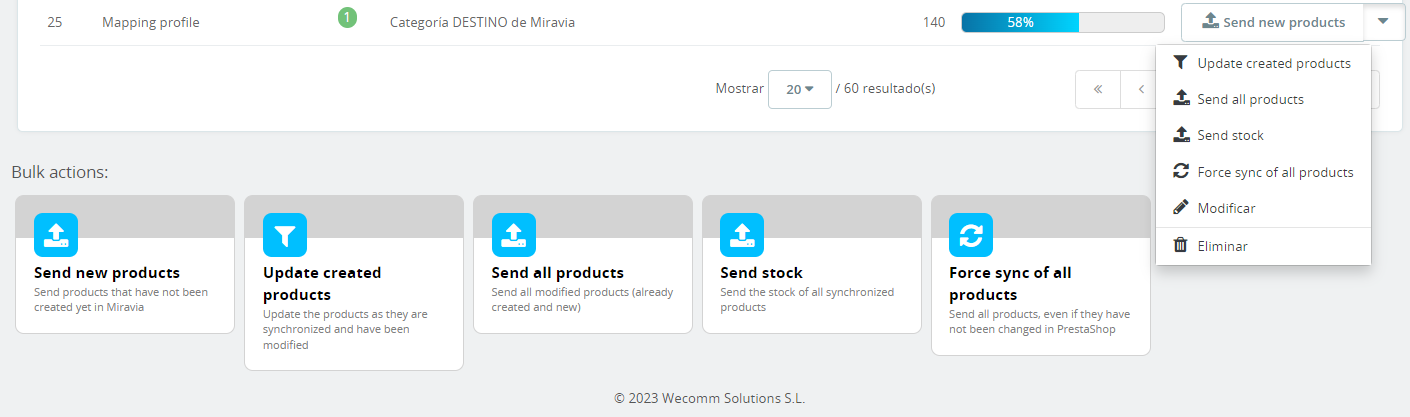
</span><span style="font-size: 11pt; font-family: Jost, sans-serif; background-color: transparent; font-weight: 400; font-style: normal; font-variant: normal; text-decoration: none; vertical-align: baseline; white-space: pre-wrap;">Por cada relación de categorías (mapping profile) podemos usar el desplegable derecho para enviar productos nuevos (pertenecientes al mapping profile pero no subidos todavía), actualizar los productos ya creados, enviar todos los productos (enviar los nuevos y reenviar los ya creados pero que han sido modificados en PrestaShop), enviar el stock, forzar la sincronización de todos los productos (envia todos los productos: nuevos + ya creados hayan sido modificados o no), modificar una relación (también haciendo clic sobre el propio mapping profile), y por último también podemos eliminar la relación definida.</span><span style="font-size: 11pt; font-family: Jost, sans-serif; background-color: transparent; font-weight: 400; font-style: normal; font-variant: normal; text-decoration: none; vertical-align: baseline; white-space: pre-wrap;">  
</span><span style="font-size: 11pt; font-family: Jost, sans-serif; background-color: transparent; font-weight: 400; font-style: normal; font-variant: normal; text-decoration: none; vertical-align: baseline; white-space: pre-wrap;">  
</span><span style="font-size: 11pt; font-family: Jost, sans-serif; background-color: transparent; font-weight: 400; font-style: normal; font-variant: normal; text-decoration: none; vertical-align: baseline; white-space: pre-wrap;">Igualmente, podemos usar estas acciones masivamente con los botones de abajo, en las “</span><span style="font-size: 11pt; font-family: Jost, sans-serif; background-color: transparent; font-weight: bold; font-style: normal; font-variant: normal; text-decoration: none; vertical-align: baseline; white-space: pre-wrap;">Bulk actions</span><span style="font-size: 11pt; font-family: Jost, sans-serif; background-color: transparent; font-weight: 400; font-style: normal; font-variant: normal; text-decoration: none; vertical-align: baseline; white-space: pre-wrap;">”, de forma que las acciones se realizan sobre todas las relaciones o mapping profiles definidos.</span>

<span style="font-size: 11pt; font-family: Jost,sans-serif; color: #000000; background-color: transparent; font-weight: 400; font-style: normal; font-variant: normal; text-decoration: none; vertical-align: baseline; white-space: pre-wrap;"><span style="border: 1pt solid #000000; display: inline-block; overflow: hidden; width: 643px; height: 191px;">![Captura de pantalla 2024-07-25 111910.png](https://docs.miravia.wecomm.es/uploads/images/gallery/2024-07/captura-de-pantalla-2024-07-25-111910.png)</span></span>

<span style="font-size: 11pt; font-family: Jost,sans-serif; color: #999999; background-color: transparent; font-weight: 400; font-style: italic; font-variant: normal; text-decoration: none; vertical-align: baseline; white-space: pre-wrap;">Imagen 5.3.01 - Ventana “Mapping profiles”</span>

<span style="font-size: 11pt; font-family: Jost, sans-serif; background-color: transparent; font-weight: 400; font-style: normal; font-variant: normal; text-decoration: none; vertical-align: baseline; white-space: pre-wrap;">Una vez tengamos productos enviados, podemos ver en la barra de progreso, el porcentaje de productos subidos de todos los posibles, es decir, de todos los contenidos en las categorías mapeadas. El no llegar al 100% puede deberse tanto a errores en productos como a filtros o reglas de filtrado definidas. Si hay productos no sincronizados por errores, se observará un tramo rojo en la propia barra de progreso, representando el porcentaje de éstos.</span>

### <span style="font-size: 15pt; font-family: Jost,sans-serif; color: #28897f; background-color: transparent; font-weight: 500; font-style: normal; font-variant: normal; text-decoration: none; vertical-align: baseline; white-space: pre-wrap;">5.4 RULES</span>

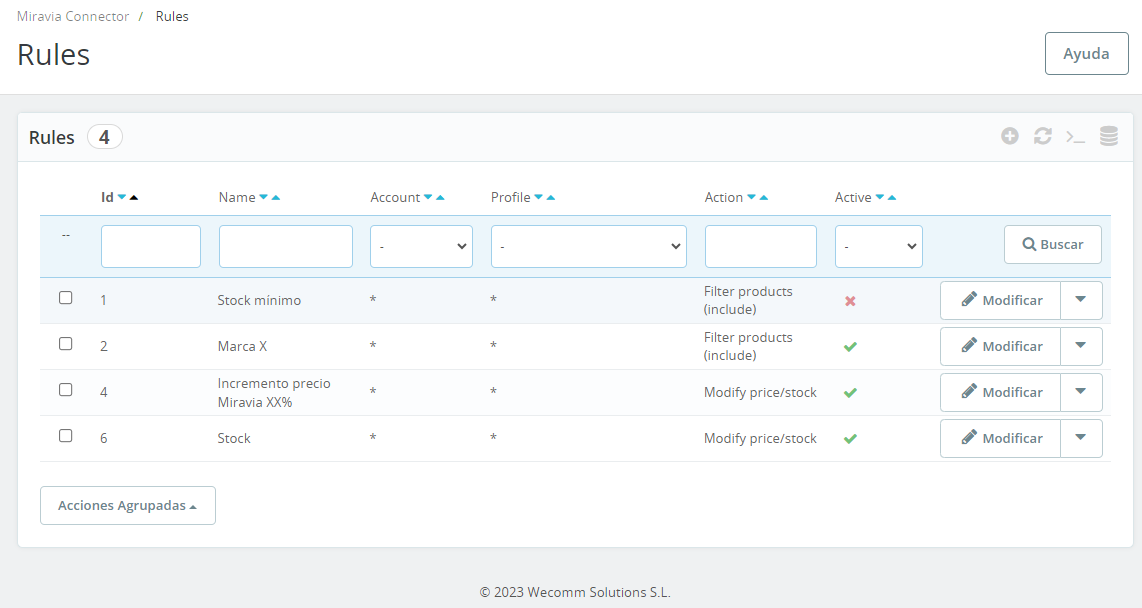
<span style="font-size: 11pt; font-family: Jost, sans-serif; font-weight: 400; font-style: normal; font-variant: normal; text-decoration: none; vertical-align: baseline; white-space: pre-wrap;">Panel que permite </span><span style="font-size: 11pt; font-family: Jost, sans-serif; font-weight: bold; font-style: normal; font-variant: normal; text-decoration: none; vertical-align: baseline; white-space: pre-wrap;">añadir filtros o reglas de filtrado</span><span style="font-size: 11pt; font-family: Jost, sans-serif; font-weight: 400; font-style: normal; font-variant: normal; text-decoration: none; vertical-align: baseline; white-space: pre-wrap;"> de productos. Con estas reglas podemos definir que sólo queremos subir productos que tengan un stock mínimo, que sean de una marca, fabricante o proveedor concretos, incrementar o modificar el precio, impedir la sincronización de algunos productos, modificar el nombre o la descripción, entre muchas otras.</span><span style="font-size: 11pt; font-family: Jost,sans-serif; color: #000000; background-color: transparent; font-weight: 400; font-style: normal; font-variant: normal; text-decoration: none; vertical-align: baseline; white-space: pre-wrap;">  
  
</span>

<span style="font-size: 11pt; font-family: Jost,sans-serif; color: #000000; background-color: transparent; font-weight: 400; font-style: normal; font-variant: normal; text-decoration: none; vertical-align: baseline; white-space: pre-wrap;">  
</span><span style="font-size: 11pt; font-family: Jost,sans-serif; color: #000000; background-color: transparent; font-weight: 400; font-style: normal; font-variant: normal; text-decoration: none; vertical-align: baseline; white-space: pre-wrap;"><span style="border: 1pt solid #000000; display: inline-block; overflow: hidden; width: 643px; height: 343px;">![Captura de pantalla 2024-07-25 101726.png](https://docs.miravia.wecomm.es/uploads/images/gallery/2024-07/captura-de-pantalla-2024-07-25-101726.png)</span></span>

<span style="font-size: 11pt; font-family: Jost,sans-serif; color: #999999; background-color: transparent; font-weight: 400; font-style: italic; font-variant: normal; text-decoration: none; vertical-align: baseline; white-space: pre-wrap;">Imagen 5.4.01 - Ventana “Rules”</span>

*<span style="font-size: 11pt; font-family: Jost, sans-serif; background-color: transparent; font-weight: 400; font-variant: normal; text-decoration: none; vertical-align: baseline; white-space: pre-wrap;">Nota: Miravia tiene comisiones en la venta que dependen directamente de la categoría en la que están publicados, y que cambian con el tiempo. Es una buena práctica hacer uso de una regla de filtrado para impactar en el precio de nuestros productos en Miravia, de forma que tengamos en cuenta las comisiones de Miravia para no perder el control sobre los márgenes de venta.</span>*

*<span style="color: rgb(17, 85, 204);">[<span style="font-size: 11pt; font-family: Jost, sans-serif; background-color: transparent; font-weight: 400; font-variant: normal; text-decoration: none; vertical-align: baseline; white-space: pre-wrap;">Tabla de comisiones de Miravia</span>](https://sell.miravia.es/feelist)</span>*

### <span style="font-size: 15pt; font-family: Jost,sans-serif; color: #28897f; background-color: transparent; font-weight: 500; font-style: normal; font-variant: normal; text-decoration: none; vertical-align: baseline; white-space: pre-wrap;">5.5 PRODUCTS</span>

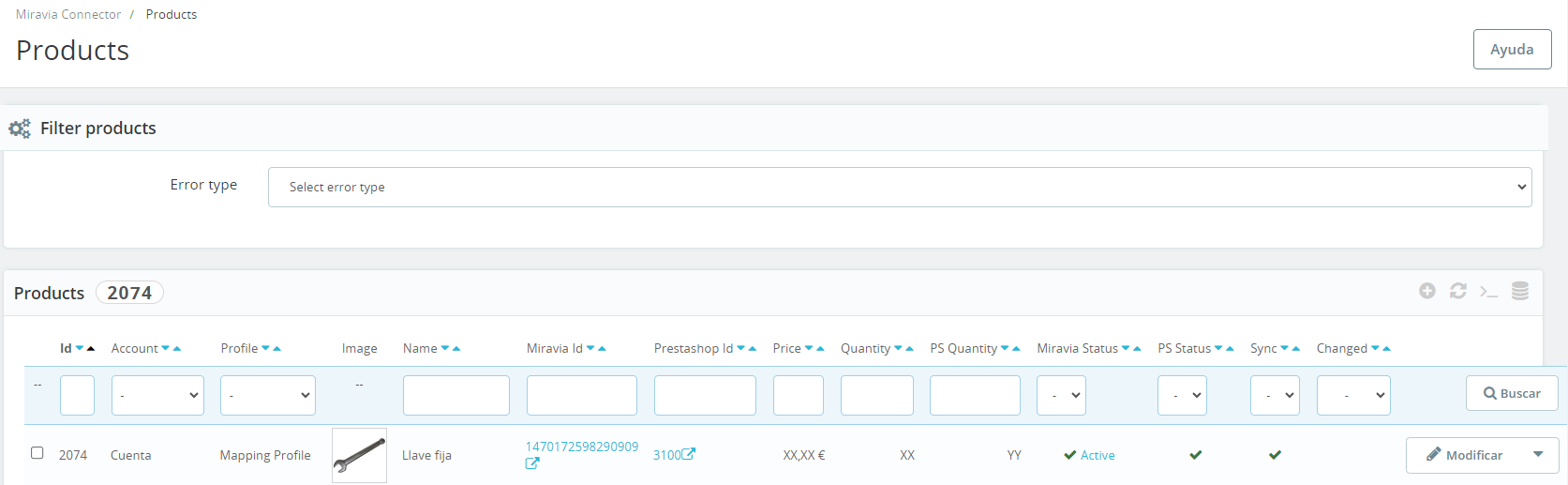
<span style="font-size: 11pt; font-family: Jost, sans-serif; background-color: transparent; font-weight: 400; font-style: normal; font-variant: normal; text-decoration: none; vertical-align: baseline; white-space: pre-wrap;">Panel de productos. En primer lugar hay un filtro de productos desplegable, que </span><span style="font-size: 11pt; font-family: Jost, sans-serif; background-color: transparent; font-weight: bold; font-style: normal; font-variant: normal; text-decoration: none; vertical-align: baseline; white-space: pre-wrap;">filtra los productos no sincronizados</span><span style="font-size: 11pt; font-family: Jost, sans-serif; background-color: transparent; font-weight: 400; font-style: normal; font-variant: normal; text-decoration: none; vertical-align: baseline; white-space: pre-wrap;"> según el error que ocasiona que no se suban a Miravia, para que los tengamos agrupados y sea más eficiente solucionar los errores. </span>

<span style="font-size: 11pt; font-family: Jost, sans-serif; background-color: transparent; font-weight: 400; font-style: normal; font-variant: normal; text-decoration: none; vertical-align: baseline; white-space: pre-wrap;">Debajo del filtro, está la </span><span style="font-size: 11pt; font-family: Jost, sans-serif; background-color: transparent; font-weight: bold; font-style: normal; font-variant: normal; text-decoration: none; vertical-align: baseline; white-space: pre-wrap;">tabla de productos</span><span style="font-size: 11pt; font-family: Jost, sans-serif; background-color: transparent; font-weight: 400; font-style: normal; font-variant: normal; text-decoration: none; vertical-align: baseline; white-space: pre-wrap;">. Con el filtro seleccionado, nos mostrará los productos afectados por el error seleccionado. Si no hay ningún filtro seleccionado, nos muestra todos los productos mapeados (activos + inactivos + no sincronizados).</span><span style="font-size: 11pt; font-family: Jost,sans-serif; color: #000000; background-color: transparent; font-weight: 400; font-style: normal; font-variant: normal; text-decoration: none; vertical-align: baseline; white-space: pre-wrap;">  
</span>

<span style="font-size: 11pt; font-family: Jost,sans-serif; color: #000000; background-color: transparent; font-weight: 400; font-style: normal; font-variant: normal; text-decoration: none; vertical-align: baseline; white-space: pre-wrap;">  
</span><span style="font-size: 11pt; font-family: Jost,sans-serif; color: #000000; background-color: transparent; font-weight: 400; font-style: normal; font-variant: normal; text-decoration: none; vertical-align: baseline; white-space: pre-wrap;"><span style="border: 1pt solid #000000; display: inline-block; overflow: hidden; width: 643px; height: 199px;">![Captura de pantalla 2024-07-25 104014.png](https://docs.miravia.wecomm.es/uploads/images/gallery/2024-07/captura-de-pantalla-2024-07-25-104014.png)</span></span>

<span style="font-size: 11pt; font-family: Jost,sans-serif; color: #999999; background-color: transparent; font-weight: 400; font-style: italic; font-variant: normal; text-decoration: none; vertical-align: baseline; white-space: pre-wrap;">Imagen 5.5.01 - Ventana “Products”</span>

<span style="font-size: 11pt; font-family: Jost, sans-serif; background-color: transparent; font-weight: 400; font-style: normal; font-variant: normal; text-decoration: none; vertical-align: baseline; white-space: pre-wrap;">Desde aquí podemos activar o desactivar uno o varios productos, acceder a su página publicada en Miravia haciendo clic sobre su “</span><span style="font-size: 11pt; font-family: Jost, sans-serif; background-color: transparent; font-weight: bold; font-style: normal; font-variant: normal; text-decoration: none; vertical-align: baseline; white-space: pre-wrap;">Miravia Id</span><span style="font-size: 11pt; font-family: Jost, sans-serif; background-color: transparent; font-weight: 400; font-style: normal; font-variant: normal; text-decoration: none; vertical-align: baseline; white-space: pre-wrap;">”, acceder a la edición de producto en PrestaShop haciendo clic sobre su “</span><span style="font-size: 11pt; font-family: Jost, sans-serif; background-color: transparent; font-weight: bold; font-style: normal; font-variant: normal; text-decoration: none; vertical-align: baseline; white-space: pre-wrap;">PrestaShop Id</span><span style="font-size: 11pt; font-family: Jost, sans-serif; background-color: transparent; font-weight: 400; font-style: normal; font-variant: normal; text-decoration: none; vertical-align: baseline; white-space: pre-wrap;">” y también filtrar u ordenar los productos por cualquiera de las columnas.</span>

### <span style="font-size: 15pt; font-family: Jost,sans-serif; color: #28897f; background-color: transparent; font-weight: 500; font-style: normal; font-variant: normal; text-decoration: none; vertical-align: baseline; white-space: pre-wrap;">5.6 ORDERS</span>

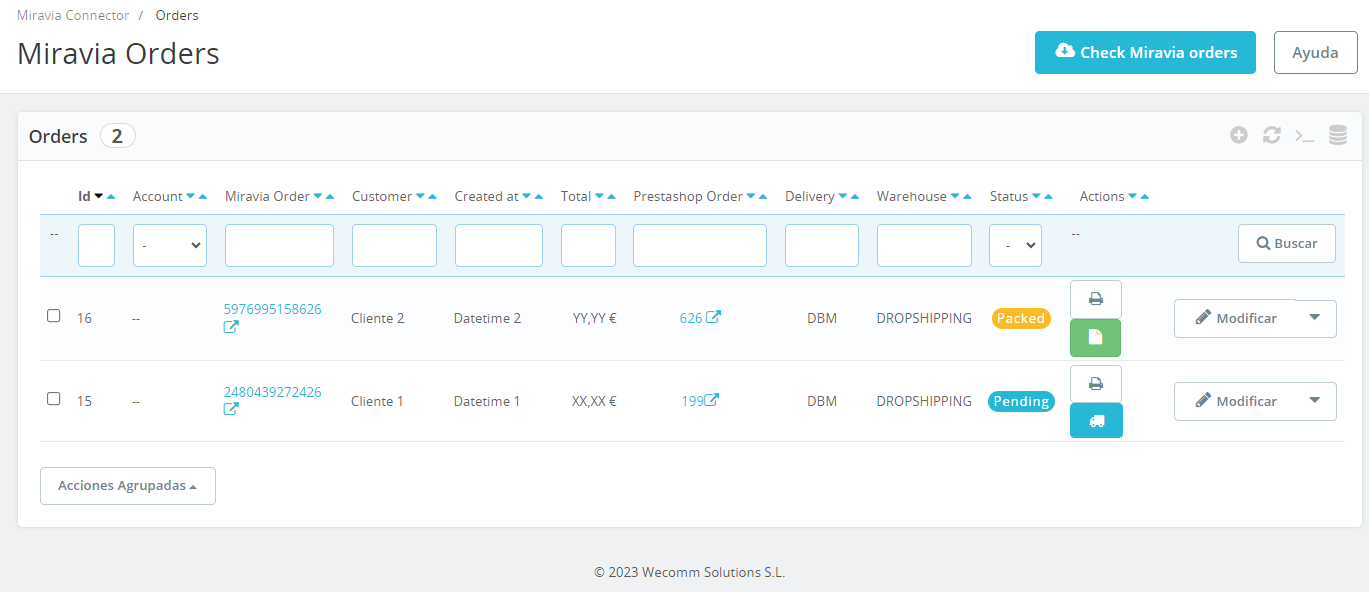
<span style="font-size: 11pt; font-family: Jost, sans-serif; background-color: transparent; font-weight: 400; font-style: normal; font-variant: normal; text-decoration: none; vertical-align: baseline; white-space: pre-wrap;">Panel de</span><span style="font-size: 11pt; font-family: Jost, sans-serif; background-color: transparent; font-weight: bold; font-style: normal; font-variant: normal; text-decoration: none; vertical-align: baseline; white-space: pre-wrap;"> gestión de pedidos</span><span style="font-size: 11pt; font-family: Jost, sans-serif; background-color: transparent; font-weight: 400; font-style: normal; font-variant: normal; text-decoration: none; vertical-align: baseline; white-space: pre-wrap;">. En la tabla se mostrarán todos los pedidos de Miravia, donde nuevamente podremos filtrar y ordenar por cualquiera de las columnas. En concreto, la tabla muestra el id del pedido, la cuenta de Miravia en la que se ha generado el pedido, el id de pedido de Miravia (desde el cuál podemos acceder haciendo clic al pedido en el seller center de Miravia), el nombre del cliente, la fecha y hora de creación del pedido, el precio total del pedido (con los costes de envío incluidos), el id de pedido de PrestaShop, el método de envío (puede ser DBM o DBS, ver 9. Gestión de pedidos de Miravia), el almacén de envío, el estado del pedido y por último, las acciones disponibles.</span><span style="font-size: 11pt; font-family: Jost, sans-serif; background-color: transparent; font-weight: 400; font-style: normal; font-variant: normal; text-decoration: none; vertical-align: baseline; white-space: pre-wrap;">  
</span><span style="font-size: 11pt; font-family: Jost, sans-serif; background-color: transparent; font-weight: 400; font-style: normal; font-variant: normal; text-decoration: none; vertical-align: baseline; white-space: pre-wrap;">  
</span><span style="font-size: 11pt; font-family: Jost, sans-serif; background-color: transparent; font-weight: 400; font-style: normal; font-variant: normal; text-decoration: none; vertical-align: baseline; white-space: pre-wrap;">En la parte superior, también tenemos el botón “</span><span style="font-size: 11pt; font-family: Jost, sans-serif; background-color: transparent; font-weight: bold; font-style: normal; font-variant: normal; text-decoration: none; vertical-align: baseline; white-space: pre-wrap;">Check Miravia orders</span><span style="font-size: 11pt; font-family: Jost, sans-serif; background-color: transparent; font-weight: 400; font-style: normal; font-variant: normal; text-decoration: none; vertical-align: baseline; white-space: pre-wrap;">”, que fuerza la actualización del estado de los pedidos de Miravia. Normalmente no es necesario clicarlo, ya que deberían llegar notificaciones cuando haya pedidos nuevos, pero la funcionalidad está implementada por si hubiera que forzar la actualización de la información.</span>

<span style="font-size: 11pt; font-family: Jost,sans-serif; color: #000000; background-color: transparent; font-weight: 400; font-style: normal; font-variant: normal; text-decoration: none; vertical-align: baseline; white-space: pre-wrap;"><span style="border: 1pt solid #000000; display: inline-block; overflow: hidden; width: 643px; height: 277px;">![Captura de pantalla 2024-07-25 113123.png](https://docs.miravia.wecomm.es/uploads/images/gallery/2024-07/captura-de-pantalla-2024-07-25-113123.png)</span></span>

<span style="font-size: 11pt; font-family: Jost,sans-serif; color: #999999; background-color: transparent; font-weight: 400; font-style: italic; font-variant: normal; text-decoration: none; vertical-align: baseline; white-space: pre-wrap;">Imagen 5.6.01 - Ventana “Orders”</span>

### <span style="font-size: 15pt; font-family: Jost,sans-serif; color: #28897f; background-color: transparent; font-weight: 500; font-style: normal; font-variant: normal; text-decoration: none; vertical-align: baseline; white-space: pre-wrap;">5.7 BRANDS</span>

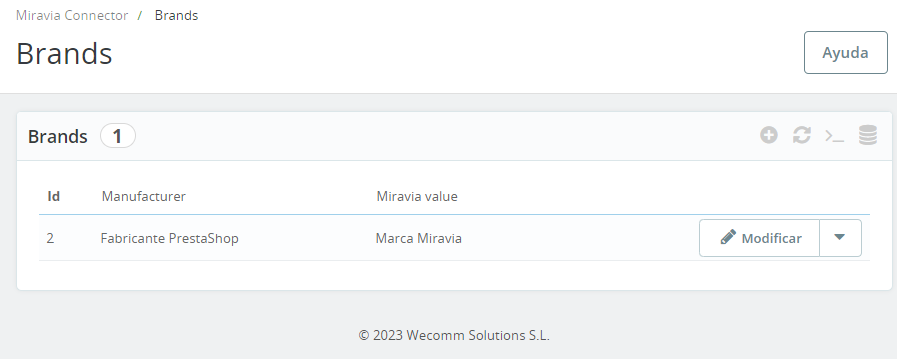
<span style="font-size: 11pt; font-family: Jost, sans-serif; background-color: transparent; font-weight: 400; font-style: normal; font-variant: normal; text-decoration: none; vertical-align: baseline; white-space: pre-wrap;">Panel de </span><span style="font-size: 11pt; font-family: Jost, sans-serif; background-color: transparent; font-weight: bold; font-style: normal; font-variant: normal; text-decoration: none; vertical-align: baseline; white-space: pre-wrap;">gestión de marcas registradas</span><span style="font-size: 11pt; font-family: Jost, sans-serif; background-color: transparent; font-weight: 400; font-style: normal; font-variant: normal; text-decoration: none; vertical-align: baseline; white-space: pre-wrap;">. </span><span style="font-size: 11pt; font-family: Jost, sans-serif; background-color: transparent; font-weight: 400; font-style: normal; font-variant: normal; text-decoration: none; vertical-align: baseline; white-space: pre-wrap;">  
</span><span style="font-size: 11pt; font-family: Jost, sans-serif; background-color: transparent; font-weight: 400; font-style: normal; font-variant: normal; text-decoration: none; vertical-align: baseline; white-space: pre-wrap;">  
</span><span style="font-size: 11pt; font-family: Jost, sans-serif; background-color: transparent; font-weight: 400; font-style: italic; font-variant: normal; text-decoration: none; vertical-align: baseline; white-space: pre-wrap;">Nota: Miravia no te permite vender productos de una marca hasta que no te autoriza. Para ello, se debe hacer una solicitud desde tu Centro de Vendedor o Seller Center. Suponiendo que tienes aprobada la solicitud de marca, ya podrías vender productos bajo esa marca.</span><span style="font-size: 11pt; font-family: Jost,sans-serif; color: #000000; background-color: transparent; font-weight: 400; font-style: normal; font-variant: normal; text-decoration: none; vertical-align: baseline; white-space: pre-wrap;">  
</span>

<span style="color: rgb(17, 85, 204);">*[<span style="font-size: 11pt; font-family: Jost, sans-serif; background-color: transparent; font-weight: 400; font-variant: normal; text-decoration: none; vertical-align: baseline; white-space: pre-wrap;">Tutorial de Miravia Academy de cómo solicitar una marca</span>](https://sellercenter.miravia.es/academy/course/learn?spm=a2a4n.academy_course_search.module_search.d_2.4b44705fYcMSq7&id=100001852&type=lms)*</span>

<span style="font-size: 11pt; font-family: Jost, sans-serif; background-color: transparent; font-weight: 400; font-style: normal; font-variant: normal; text-decoration: none; vertical-align: baseline; white-space: pre-wrap;">Aquí se muestra un panel muy simple, donde </span><span style="font-size: 11pt; font-family: Jost, sans-serif; background-color: transparent; font-weight: bold; font-style: normal; font-variant: normal; text-decoration: none; vertical-align: baseline; white-space: pre-wrap;">se definen relaciones 1:1</span><span style="font-size: 11pt; font-family: Jost, sans-serif; background-color: transparent; font-weight: 400; font-style: normal; font-variant: normal; text-decoration: none; vertical-align: baseline; white-space: pre-wrap;"> entre las marcas de tu productos de PrestaShop, y la marca correspondiente registrada en Miravia.</span><span style="font-size: 11pt; font-family: Jost,sans-serif; color: #000000; background-color: transparent; font-weight: 400; font-style: normal; font-variant: normal; text-decoration: none; vertical-align: baseline; white-space: pre-wrap;">  
</span>

<span style="font-size: 11pt; font-family: Jost,sans-serif; color: #000000; background-color: transparent; font-weight: 400; font-style: normal; font-variant: normal; text-decoration: none; vertical-align: baseline; white-space: pre-wrap;">  
</span><span style="font-size: 11pt; font-family: Jost,sans-serif; color: #000000; background-color: transparent; font-weight: 400; font-style: normal; font-variant: normal; text-decoration: none; vertical-align: baseline; white-space: pre-wrap;"><span style="border: 1pt solid #000000; display: inline-block; overflow: hidden; width: 643px; height: 257px;">![Captura de pantalla 2024-07-25 123315.png](https://docs.miravia.wecomm.es/uploads/images/gallery/2024-07/captura-de-pantalla-2024-07-25-123315.png)</span></span>

<span style="font-size: 11pt; font-family: Jost,sans-serif; color: #999999; background-color: transparent; font-weight: 400; font-style: italic; font-variant: normal; text-decoration: none; vertical-align: baseline; white-space: pre-wrap;">Imagen 5.7.01 - Ventana “Brands”</span>

<span style="font-weight: normal;">  
</span>

<span style="font-size: 11pt; font-family: Jost, sans-serif; background-color: transparent; font-weight: 400; font-style: italic; font-variant: normal; text-decoration: none; vertical-align: baseline; white-space: pre-wrap;">Nota: Si se suben productos de un fabricante que no tiene una relación con una marca registrada en Miravia, se sube como un producto sin marca.</span>