# 6. Sincronización con la tienda de Miravia

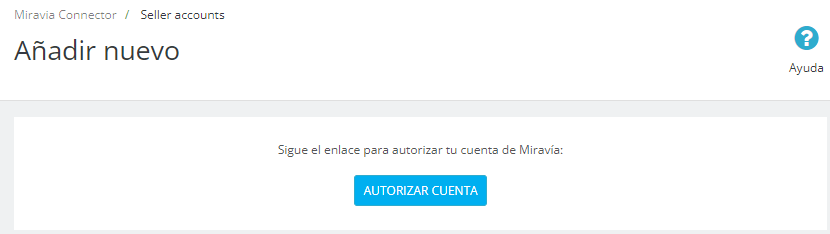
<span style="font-size: 11pt; font-family: Jost, sans-serif; background-color: transparent; font-weight: 400; font-style: normal; font-variant: normal; text-decoration: none; vertical-align: baseline; white-space: pre-wrap;">Para sincronizar nuestro PrestaShop con una tienda en Miravia, debemos acceder a la ventana “</span><span style="font-size: 11pt; font-family: Jost, sans-serif; background-color: transparent; font-weight: bold; font-style: normal; font-variant: normal; text-decoration: none; vertical-align: baseline; white-space: pre-wrap;">Seller accounts</span><span style="font-size: 11pt; font-family: Jost, sans-serif; background-color: transparent; font-weight: 400; font-style: normal; font-variant: normal; text-decoration: none; vertical-align: baseline; white-space: pre-wrap;">” y hacer clic en “</span><span style="font-size: 11pt; font-family: Jost, sans-serif; background-color: transparent; font-weight: bold; font-style: normal; font-variant: normal; text-decoration: none; vertical-align: baseline; white-space: pre-wrap;">Añadir nuevo</span><span style="font-size: 11pt; font-family: Jost, sans-serif; background-color: transparent; font-weight: 400; font-style: normal; font-variant: normal; text-decoration: none; vertical-align: baseline; white-space: pre-wrap;">”.</span>

<span style="font-size: 11pt; font-family: Jost, sans-serif; background-color: transparent; font-weight: 400; font-style: normal; font-variant: normal; text-decoration: none; vertical-align: baseline; white-space: pre-wrap;">Al pulsar el botón nos pedirá seguir un enlace para autorizar la conexión mediante las credenciales de nuestra tienda de Miravia. Para ello, primero hay que pulsar en el botón “</span><span style="font-size: 11pt; font-family: Jost, sans-serif; background-color: transparent; font-weight: bold; font-style: normal; font-variant: normal; text-decoration: none; vertical-align: baseline; white-space: pre-wrap;">AUTORIZAR CUENTA</span><span style="font-size: 11pt; font-family: Jost, sans-serif; background-color: transparent; font-weight: 400; font-style: normal; font-variant: normal; text-decoration: none; vertical-align: baseline; white-space: pre-wrap;">”.</span>

<span style="font-size: 11pt; font-family: Jost,sans-serif; color: #000000; background-color: transparent; font-weight: 400; font-style: normal; font-variant: normal; text-decoration: none; vertical-align: baseline; white-space: pre-wrap;"><span style="border: 1pt solid #000000; display: inline-block; overflow: hidden; width: 643px; height: 181px;">![Captura de pantalla 2024-06-06 130655.png](https://docs.miravia.wecomm.es/uploads/images/gallery/2024-07/captura-de-pantalla-2024-06-06-130655.png)</span></span>

<span style="font-size: 11pt; font-family: Jost,sans-serif; color: #999999; background-color: transparent; font-weight: 400; font-style: italic; font-variant: normal; text-decoration: none; vertical-align: baseline; white-space: pre-wrap;">Imagen 6.01 - Botón “AUTORIZAR CUENTA” en la ventana “Seller accounts”</span>

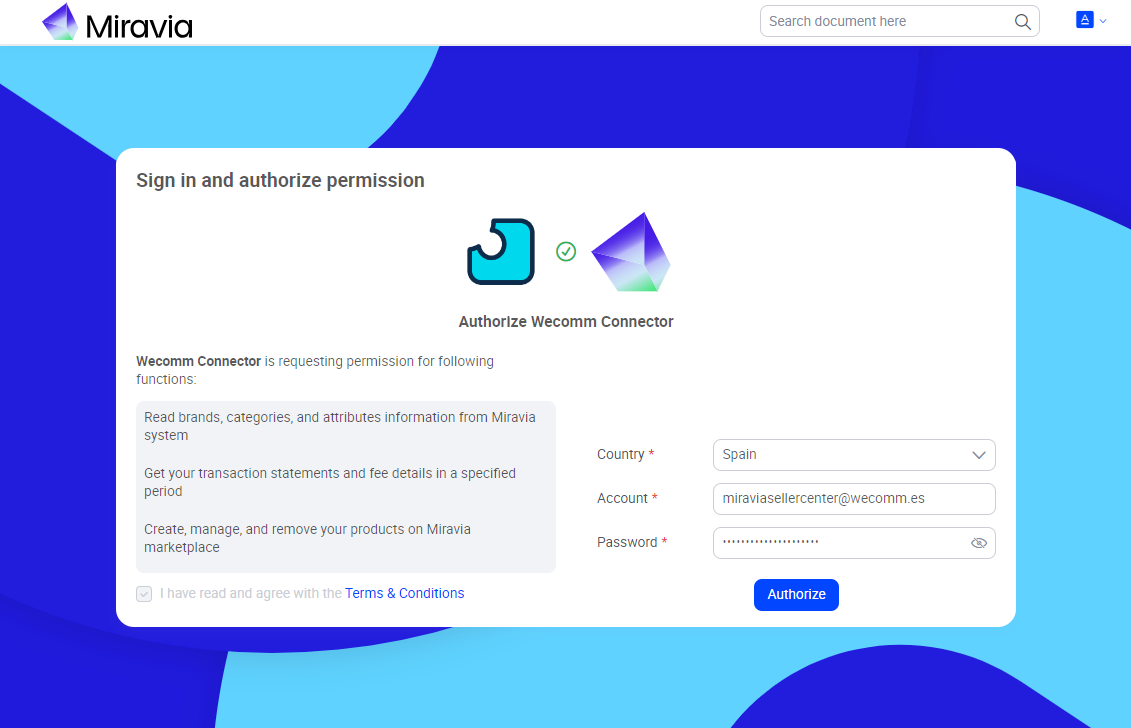
<span style="font-size: 11pt; font-family: Jost, sans-serif; background-color: transparent; font-weight: 400; font-style: normal; font-variant: normal; text-decoration: none; vertical-align: baseline; white-space: pre-wrap;">Al pulsar el botón cargará la página de vinculación donde debemos autorizar los permisos requeridos por el módulo, seleccionando el país desde el desplegable, e introduciendo las credenciales de acceso del Seller Center de Miravia (Centro de vendedor). Hacemos clic en “</span><span style="font-size: 11pt; font-family: Jost, sans-serif; background-color: transparent; font-weight: bold; font-style: normal; font-variant: normal; text-decoration: none; vertical-align: baseline; white-space: pre-wrap;">AUTHORIZE</span><span style="font-size: 11pt; font-family: Jost, sans-serif; background-color: transparent; font-weight: 400; font-style: normal; font-variant: normal; text-decoration: none; vertical-align: baseline; white-space: pre-wrap;">”.</span>

<span style="font-size: 11pt; font-family: Jost,sans-serif; color: #000000; background-color: transparent; font-weight: 400; font-style: normal; font-variant: normal; text-decoration: none; vertical-align: baseline; white-space: pre-wrap;"><span style="border: 1pt solid #000000; display: inline-block; overflow: hidden; width: 643px; height: 413px;">![Captura de pantalla 2024-06-06 131132.png](https://docs.miravia.wecomm.es/uploads/images/gallery/2024-07/captura-de-pantalla-2024-06-06-131132.png)</span></span>

<span style="font-size: 11pt; font-family: Jost,sans-serif; color: #999999; background-color: transparent; font-weight: 400; font-style: italic; font-variant: normal; text-decoration: none; vertical-align: baseline; white-space: pre-wrap;">Imagen 6.02 - Página de autenticación de la cuenta de Miravia</span>

<span style="font-weight: normal;">  
</span>

<span style="font-size: 11pt; font-family: Jost, sans-serif; background-color: transparent; font-weight: 400; font-style: normal; font-variant: normal; text-decoration: none; vertical-align: baseline; white-space: pre-wrap;">Si la autenticación ha sido exitosa veremos un banner verde y ya tendremos nuestra de vendedor añadida en la tabla. En caso contrario, veremos un banner rojo si algo ha fallado.</span>